
If you manage remote Linux servers, configure network switches, deploy cloud infrastructure, or simply tinker with a Raspberry Pi from a PC, your Secure Shell (SSH) client is your digital steering wheel.
For years, Windows users were treated as second-class citizens in the terminal ecosystem, forced to rely on bare-bones third-party utilities or clunky emulation layers.
Today, the landscape is radically different. Finding the best SSH clients for Windows means choosing between lightweight open-source staples, full-blown enterprise multi-protocol suites, GPU-accelerated terminal emulators, and tightly integrated cloud-native workspaces.
Whether you need a rock-solid terminal that runs off a USB drive, an automated session manager with built-in SFTP and X11 forwarding, or a modern tabbed interface that looks like it belongs in the modern Windows design language, this comprehensive guide breaks down the best SSH clients for Windows, analyzing their performance, architecture, security, and everyday ergonomics.
What Makes a Great Windows SSH Client?
Before diving into individual software reviews, let’s establish the benchmark criteria used to evaluate these tools. When evaluating the best SSH clients for Windows, sysadmins, DevOps engineers, and developers typically evaluate six core dimensions:
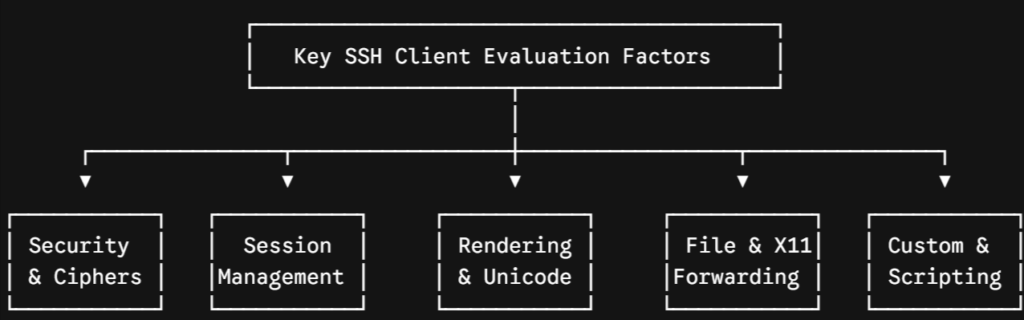
- Cryptographic Integrity & Standards Compliance: Support for modern key types (
ed25519,ecdsa), robust key generation utilities, certificate-based authentication, FIDO2/U2F hardware token integration, and support for jump hosts/bastions. - Session & Credential Management: The ability to group, tag, search, and automate connections across hundreds of remote hosts without manual authentication loops.
- Terminal Emulation & Rendering: Native support for xterm-256color, TrueColor (24-bit), full Unicode/UTF-8 rendering, Powerline glyphs for custom shell prompts (Zsh/Starship), and hardware-accelerated text rendering.
- File Transfer & Protocol Multiplexing: Integrated SFTP/SCP side panels, drag-and-drop remote file browsers, synchronized directory browsing, and port forwarding/tunnel managers.
- Portability & Resource Footprint: Memory usage, startup latency, and whether the tool offers a standalone portable binary or integrates into an existing enterprise environment.
- Automation & Extensibility: Macro recording, scripted session handshakes, snippets, plugin architectures, and dynamic multi-execution (broadcasting commands to multiple terminals simultaneously).
Quick Comparison of Best SSH Clients for Windows at a Glance
| Client | License / Price | Best For | Standout Feature | SFTP / File Transfer |
|---|---|---|---|---|
| PuTTY / KiTTY | Open Source (MIT) | Minimalists, quick triage, legacy hosts | Zero-install portable footprint | Separate tool (psftp) or integrated (KiTTY) |
| MobaXterm | Freemium / Commercial | Sysadmins, network engineers, lab setups | Integrated X11 server + auto-SFTP dock | Built-in graphical SFTP |
| Windows Terminal + OpenSSH | Open Source (MIT) | Modern power users, WSL2 developers | GPU rendering, tabs, system-level speed | Command-line (scp/sftp) |
| Termius | Freemium / Subscription | Multi-device pros, team DevOps | Encrypted cloud sync, cross-platform | Graphical SFTP (Paid/Trial) |
| Bitvise SSH Client | Free for personal/org use | Automated tunnels, port forwarding, SFTP | Best-in-class graphical tunneling UI | Full-featured dual-pane SFTP |
| SecureCRT | Commercial (Perpetual) | Enterprise sysadmins, telecom engineers | Military-grade scripting, compliance | Integrated file transfers |
| Tabby | Open Source (MIT) | Customization enthusiasts, web-tech fans | Highly extensible plugin ecosystem | Built-in SFTP client |
| Royal TS | Commercial | Enterprise teams, multi-protocol IT | Broad protocol support (SSH, RDP, VNC) | SFTP/SCP add-on modules |
1. PuTTY & KiTTY: The Timeless Open-Source Standard
No discussion of the best SSH clients for Windows is complete without acknowledging PuTTY. First released by Simon Tatham in late 1998, PuTTY has served as the default terminal workhorse for over two decades.
+-------+
| PuTTY Configuration
+-------+
Category:          Basic options for your PuTTY session
  ├─ Session        Host Name (or IP address)
  ├─ Terminal       [ 192.168.1.150]
  ├─ Window         Port: [ 22 ]  Connection type: (o) SSH
  └─ Connection
     ├─ Data       Saved Sessions
     ├─ Proxy      [ Production-Web-Cluster] [Save]
     └─ SSH        [ Default Settings] [Load]
        ├─ Kex    [ Staging-Bastion] [Del]
        └─ Auth
+-------+
Deep Architectural Analysis
PuTTY is engineered as a lean, native Win32 application with zero external framework dependencies. It interacts directly with the Windows GDI (Graphics Device Interface) and the Windows socket layer (Winsock). Because of this:
- Startup time is virtually instantaneous ($<50\text{ ms}$).
- Memory overhead hovers around $3\text{ MB}$ to $8\text{ MB}$ of RAM per session.
- It runs seamlessly on any Windows system from legacy Windows XP to Windows 11 and Windows Server 2025.
Key Strengths
- Uncompromising Portability: A single standalone executable file (
putty.exe) requires no installation, registry writes, or administrative privileges. - Granular Protocol Control: Direct access to raw cipher selection ordering, host key algorithm negotiation, pseudo-terminal allocation flags, and TCP keepalive intervals.
- The PuTTY Ecosystem: Comes bundled with companion tools including
Pageant(SSH authentication agent),PuTTYgen(key generation utility),pscp(command-line file transfer), andplink(command-line backend interface).
Weaknesses & Limitations
- Outdated Session Management: Sessions are stored directly in the Windows Registry (
HKCU\Software\SimonTatham\PuTTY\Sessions), making multi-machine sync awkward without export scripts. - No Native Tabs: Every connection opens in a separate OS window unless paired with a third-party wrapper.
- PPK Format Quirks: PuTTY historically uses its proprietary
.ppkkey format rather than standard OpenSSH PEM/PKCS#8 keys, requiring conversion insidePuTTYgen.
KiTTY: The Modernized Fork
For users who appreciate PuTTY’s minimal footprint but crave contemporary features, KiTTY is the go-to alternative. It adds:
- Automatic session passwords and command scripts upon login.
- Built-in session filtering and folder trees.
- An integrated background image and transparency engine.
- A built-in graphical SCP transfer module.
Verdict: When you need a battle-tested, portable client that works anywhere without elevated permissions, PuTTY and KiTTY remain staple contenders among the best SSH clients for Windows.
2. MobaXterm: The Swiss Army Knife for Infrastructure Engineers
If PuTTY is a compact pocket knife, MobaXterm (by Mobatek) is an entire commercial toolbox. It is widely considered one of the best SSH clients for Windows when working across heterogeneous enterprise networks, Linux clusters, and lab environments.
+-------+
| MobaXterm Professional
+-------+
| [Sessions] [Servers] [Tools] [Settings]
+-------+
|  Sessions    | [ Terminal: web-prod-01 ] [ Terminal: db-primary-02 ]
| ├─ 📁 Prod   | user@web-prod-01:~$ uptime
| │  ├─ web-01 |  14:22:10 up 45 days, 3 users, load average: 0.12, 0.08
| │  └─ db-02  | user@web-prod-01:~$ _
| ├─ 📁 Dev    +-----+
| └─ 📁 Switch | Graphical SFTP Browser (web-prod-01)
+--------+ [/var/log/nginx/] [^] |
| 📁 Remote SFTP| [📄 access.log   ] [📄 error.log   ] [📁 conf.d/]
+--------+
Deep Architectural Analysis
MobaXterm is built on a packaged Cygwin POSIX emulation core coupled with a custom X server implementation (based on X.org). When you launch an SSH session, MobaXterm spins up an integrated graphical environment alongside your terminal.
       ┌────────────────────────────────────────────────────────┐
       │                 MobaXterm Master Process               │
       └───────┬───────────────────┬───────────────────┬────────┘
               │                   │                   │
               ▼                   ▼                   ▼
       ┌───────────────┐   ┌───────────────┐   ┌───────────────┐
       │ Cygwin POSIX  │   │ Embedded X11  │   │ Dual-Channel  │
       │ Emulation Core│   │ Graphic Engine│   │ SFTP Subsystem│
       └───────────────┘   └───────────────┘   └───────────────┘
Key Strengths
- Seamless Automatic SFTP Tunneling: Whenever you connect via SSH, MobaXterm automatically establishes an SFTP subsystem channel on the left sidebar. You can drag and drop files, edit remote configs directly in your local editor, and view permissions without switching tools.
- Zero-Configuration X11 Forwarding: Launching remote graphical applications (
xclock,virt-manager,gedit, orwireshark) over SSH requires zero manual display routing or local configuration. - Multi-Execution / Terminal Broadcasting: Write commands to dozens of servers simultaneously. You can type
sudo apt update && sudo apt upgrade -yonce, and watch twenty tabbed consoles execute it in parallel. - Network Tool Integration: Bundles port scanners, network packet captures, dynamic SOCKS proxy managers, VNC, RDP, FTP, and Serial terminals within a unified interface.
Weaknesses & Limitations
- Interface Clutter: The UI is feature-packed and can overwhelm users who prefer a clean, minimal workspace.
- Commercial Licensing Model: The Home Edition limits users to 12 saved sessions, 2 concurrent tunnels, and 4 macros. Unlocking unlimited sessions requires a Professional Edition license.
- Startup Footprint: Heavier RAM usage (typically $150\text{ MB}$ to $350\text{ MB}$) due to the integrated Cygwin layer and local X11 server.
Verdict: For DevOps engineers, academic researchers, and systems administrators who want an all-in-one workstation complete with X11 forwarding and automatic SFTP, MobaXterm consistently ranks as one of the best SSH clients for Windows.
3. Windows Terminal + Native OpenSSH: The High-Performance Native Stack
Microsoft’s open-source Windows Terminal paired with the built-in Win32-OpenSSH client has redefined the Windows command-line experience. For modern developers, this stack easily earns its spot among the best SSH clients for Windows.
+-------------------------------------------------------------------------+
| [ Ubuntu (WSL) ] [ + SSH: AWS Production ] [ PowerShell 7 ]         [v] |
+-------------------------------------------------------------------------+
| admin@ip-10-0-4-22:~$ ssh-add -l                                        |
| 256 SHA256:4k9mZ... id_ed25519_yubikey (ED25519)                        |
|                                                                         |
| admin@ip-10-0-4-22:~$ fastfetch                                         |
|        _,met$$$$$gg.          OS: Debian GNU/Linux 13 (trixie)          |
|     ,g$$$$$$$$$$$$$$$P.       Host: EC2 c6i.xlarge                      |
|   ,g$$P"     """Y$$.".        Kernel: Linux 6.8.0-aws                   |
|  ,$$P'              `$$$.     Uptime: 112 days                          |
| ',$$P       ,ggs.     `$$b:   Shell: zsh 5.9                            |
| `d$$'     ,$P"'   .    $$$    Terminal: Windows Terminal (DirectWrite)  |
|  $$P      d$'     ,    $$P    CPU: Intel Xeon Platinum 8375C (4)        |
+-------------------------------------------------------------------------+
Deep Architectural Analysis
Windows Terminal does not rely on legacy GDI rendering. Instead, it utilizes a hardware-accelerated DirectWrite / DirectX text rendering engine. Text rendering, buffer scrolling, and high-frequency stream outputs (like viewing large log files via tail -f) run on your GPU, minimizing CPU usage and eliminating terminal latency.
       ┌────────────────────────────────────────────────────────┐
       │                    Windows Terminal                    │
       │         DirectX / DirectWrite GPU-Accelerated Engine   │
       └───────────────────────────┬────────────────────────────┘
                                   │
               ┌───────────────────┴───────────────────┐
               ▼                                       ▼
       ┌───────────────┐                       ┌───────────────┐
       │ PowerShell /  │                       │ Win32 OpenSSH │
       │ Command Prompt│                       │  `ssh.exe`    │
       └───────────────┘                       └───────┬───────┘
                                                       │
                                                       ▼
                                            ┌────────────────────┐
                                            │ `~/.ssh/config`    │
                                            │ Host Management    │
                                            └────────────────────┘
Managing Sessions via ~/.ssh/config
Rather than relying on proprietary GUIs, this stack uses industry-standard OpenSSH configuration files. Create or edit C:\Users\<YourUser>\.ssh\config:
# Global Defaults
Host *
    ServerAliveInterval 60
    ServerAliveCountMax 3
    IdentityFile ~/.ssh/id_ed25519
    AddKeysToAgent yes

# Bastion / Jump Host Setup
Host bastion-internal
    HostName bastion.corp.example.com
    User jumpuser
    Port 2222
    IdentityFile ~/.ssh/corp_id

# Target Host routed through Bastion
Host prod-database-01
    HostName 10.140.20.15
    User postgres
    ProxyJump bastion-internal
    LocalForward 5433 127.0.0.1:5432
Key Strengths
- Blazing Fast Rendering: Handles massive data streams without freezing or stuttering.
- Modern Shell Ergonomics: Dynamic split panes (vertical and horizontal), custom key bindings, tab coloring, transparency effects, and full Powerline/Nerd Font symbol support.
- Unified Workspace: Run PowerShell 7, WSL2 (Ubuntu/Debian), Azure Cloud Shell, Command Prompt, and multiple OpenSSH sessions side-by-side within a single window.
- FIDO2 Hardware Token Support: Native support for security keys (like YubiKeys) via Windows WebAuthn APIs and modern OpenSSH key types (
sk-ssh-ed25519@openssh.com).
Weaknesses & Limitations
- No Built-in Graphical SFTP Panel: Requires pairing with tools like FileZilla or WinSCP for visual drag-and-drop file transfers.
- Manual Configuration: Session management requires comfort with editing JSON and text configuration files.
Verdict: If you want zero bloat, GPU-accelerated rendering, and full alignment with Linux/Unix OpenSSH standards, Windows Terminal plus native OpenSSH is one of the best SSH clients for Windows.
4. Termius: The Modern Cloud-Synced Multi-Platform Hub
For developers who split their time between desktop PCs, MacBooks, iPads, and mobile devices, Termius has emerged as one of the best SSH clients for Windows, providing an intuitive, cloud-synchronized terminal environment.
+-------------------------------------------------------------------------+
| Termius                                                            [_][X]|
+-------------------------------------------------------------------------+
| [🔍 Search Hosts...       ] | [ Terminal: k8s-master-node ]             |
|                             | Last login: Fri Aug 14 10:20:12 2026      |
| 📁 Production Clusters      | root@k8s-master-node:~# kubectl get nodes |
|   ├─ 🖥️ k8s-master-node     | NAME         STATUS   ROLES    AGE   VER  |
|   ├─ 🖥️ k8s-worker-01       | node-01      Ready    control  120d  v1.31|
|   └─ 🖥️ k8s-worker-02       | node-02      Ready    worker   120d  v1.31|
| 📁 Staging VPC              | node-03      Ready    worker   120d  v1.31|
| 📁 Personal VPS             | root@k8s-master-node:~# _                 |
|                             +-------------------------------------------+
| 🔑 Key Manager (Zero-Know.) | Snippets: [ Deploy Hook ] [ Health Check ]|
+-----------------------------+-------------------------------------------+
Deep Architectural Analysis
Termius is built atop an Electron framework paired with a modern WebGL terminal renderer. Its standout architecture lies in its synchronization model: all connection entries, saved snippets, environment variables, and SSH keys are encrypted using Zero-Knowledge AES-256-GCM on the client side before syncing via cloud relays.
Key Strengths
- Zero-Knowledge Cross-Device Sync: Add a server profile on your Windows PC, and it instantly syncs to your macOS laptop and iOS/Android phone without exposing your private keys.
- Modern, Clean UX: A sleek, distraction-free design with native tab grouping, customizable color palettes, and intuitive terminal splits.
- Snippet & Automation Engine: Store and organize commonly used shell scripts and parameterized commands. Trigger them on multiple servers with a single shortcut.
- Integrated Port Forwarding & SFTP: A visual tunnel manager simplifies local, remote, and dynamic SOCKS port forwarding.
Weaknesses & Limitations
- Subscription-Based Model: While a free basic tier is available, essentials like cloud sync, SFTP panels, snippets, and team sharing require a paid Pro or Team subscription.
- Electron Resource Overhead: Uses more baseline memory ($200\text{ MB}$ to $400\text{ MB}$) than native Win32/C++ alternatives like PuTTY.
Verdict: If cross-device mobility, team collaboration, and a polished visual workspace match your daily workflow, Termius stands out among the best SSH clients for Windows.
5. Bitvise SSH Client: The Heavy-Duty Tunneling & Automation Powerhouse
Bitvise SSH Client (BvSsh) is an exceptionally robust terminal and file transfer suite designed for Windows administrators. When your daily tasks demand complex SSH tunneling, port forwarding, and high-speed SFTP, Bitvise is one of the best SSH clients for Windows.
+-------------------------------------------------------------------------+
| Bitvise SSH Client - Host: storage-node.cloud.internal             [_][X]|
+-------------------------------------------------------------------------+
| [Login] [Status] [Options] [Terminal] [C2S Fwd] [S2C Fwd] [Services]    |
|                                                                         |
| Authentication Profile:                                                 |
|  Host: [ storage-node.cloud.internal ]  Port: [ 22 ]                    |
|  Username: [ backup-agent           ]                                   |
|  Initial Method: [ publickey - auto  ]  Profile: [ corporate_ed25519 ]  |
+-------------------------------------------------------------------------+
|  Active Windows & Subsystems:                                           |
|   [ Open New Terminal Window (VT100 / xterm) ]                          |
|   [ Open Dual-Pane Graphical SFTP Window     ]                          |
|   [ Open Remote Desktop through SSH Tunnel   ]                          |
+-------------------------------------------------------------------------+
Deep Architectural Analysis
Bitvise is built natively in C++ using custom cryptographic wrappers and asynchronous I/O architectures. It is explicitly optimized for throughput, making it capable of maxing out gigabit network adapters during multi-stream SFTP file operations.
       ┌────────────────────────────────────────────────────────┐
       │                  Bitvise Master Engine                 │
       └───────┬───────────────────┬───────────────────┬────────┘
               │                   │                   │
               ▼                   ▼                   ▼
       ┌───────────────┐   ┌───────────────┐   ┌───────────────┐
       │ VT100/xterm   │   │ High-Throughput│  │ Dynamic SOCKS │
       │ Console Engine│   │ Dual-Pane SFTP│   │ Port Forwarder│
       └───────────────┘   └───────────────┘   └───────────────┘
Key Strengths
- Industrial Port Forwarding: Provides dedicated graphical configuration tabs for Client-to-Server (C2S) and Server-to-Client (S2C) port rules, with dynamic SOCKS5 proxy routing.
- Exceptional Dual-Pane SFTP: Offers an integrated file explorer with automatic resume, directory synchronization, folder comparisons, and file checksum validations.
- Single-Click RDP-over-SSH Forwarding: Automatically tunnels standard Windows Remote Desktop Protocol connections through an encrypted SSH channel to remote Windows servers.
- Free for Organizations: Unlike many commercial competitors, Bitvise provides its complete client free of charge for both personal and corporate environments.
Weaknesses & Limitations
- Classic UI Layout: The functional, settings-heavy interface can feel complex to casual users.
- Terminal Emulation Defaults: While stable, the terminal window is straightforward compared to modern GPU-accelerated terminal engines.
Verdict: When complex port multiplexing, bulk SFTP transfers, and enterprise reliability are non-negotiable, Bitvise is easily one of the best SSH clients for Windows.
6. SecureCRT: Enterprise Reliability & Deep Scripting
For network engineers managing vast fleets of Cisco, Juniper, and Arista gear, VanDyke Software’s SecureCRT has long been an industry standard. In enterprise environments, it remains a top choice among the best SSH clients for Windows.
+-------------------------------------------------------------------------+
| VanDyke SecureCRT                                                  [_][X]|
+-------------------------------------------------------------------------+
| File  Edit  View  Options  Transfer  Script  Tools  Window  Help        |
+-------------------------------------------------------------------------+
| Session Manager: [ Core-Routers / US-East-BGP-01                     ]  |
+-------------------------------------------------------------------------+
| US-East-BGP-01# show ip bgp summary                                     |
| BGP router identifier 10.254.0.1, local AS number 65001                 |
| Neighbor        V    AS    MsgRcvd    MsgSent   TblVer  InQ OutQ  Up/Down|
| 10.254.0.2      4 65002     892014     892010        0    0    0 42w1d  |
|                                                                         |
| Command Chat Window (Broadcast to All Sessions):                        |
| [ send 'show system health' to active tabs                            ] |
+-------------------------------------------------------------------------+
Deep Architectural Analysis
SecureCRT uses a proprietary terminal emulation subsystem with deep compliance roots in DEC hardware standards (VT100, VT102, VT220, ANSI, SCO ANSI, and Wyse 50/60). It supports complete automation through Python (via an embedded engine) and VBScript, allowing engineers to script thousands of interactive network interactions.
Key Strengths
- Enterprise Scripting & Automation: Automate routine operational procedures, log analysis, configuration rollouts, and session audits using Python 3.
- Enterprise Authentication Compliance: Full support for smart cards (PIV/CAC), PKCS#11 hardware security modules, GSSAPI/Kerberos v5 realm handshakes, and strict cipher controls.
- Button Bar & Command Chat: Add custom UI buttons for single-click command sequences, and broadcast ad-hoc commands across dozens of connected switches.
- FIPS 140-2 Validation: Operates in a certified FIPS mode to meet stringent compliance and security mandates.
Weaknesses & Limitations
- Commercial Pricing: Requires a perpetual commercial license per seat, putting it out of reach for hobbyists looking for a free solution.
- Visual Styling: Focuses on functional engineering density rather than modern translucent UI styles.
Verdict: If you work in telecom, banking, or enterprise networking where FIPS compliance, rock-solid VT emulation, and Python automation are mandatory, SecureCRT is one of the best SSH clients for Windows.
7. Tabby: The Ultra-Customizable, Extensible Terminal
Tabby (formerly Terminus) is an open-source, highly extensible terminal emulator that has quickly gained traction among the best SSH clients for Windows.
+-------------------------------------------------------------------------+
| [ SSH: dev-cluster ] [ SFTP Browser ] [ Local PowerShell ]          [+] |
+-------------------------------------------------------------------------+
| developer@dev-cluster:~/apps/api$ docker compose ps                     |
| NAME                IMAGE               COMMAND             STATUS      |
| api-service         node:22-alpine      "docker-entry..."   Up 4 hours  |
| redis-cache         redis:7-alpine      "docker-entry..."   Up 4 hours  |
| postgres-db         postgres:16         "docker-entry..."   Up 4 hours  |
|                                                                         |
| developer@dev-cluster:~/apps/api$ _                                     |
+-------------------------------------------------------------------------+
| 📦 Plugin Manager: [ zmodem ] [ theme-nord ] [ quick-cmds ] [ docker ]  |
+-------------------------------------------------------------------------+
Deep Architectural Analysis
Tabby is constructed using standard web technologies (TypeScript, Electron, Angular, and xterm.js). It treats the terminal environment as an open, modular canvas. Through its built-in npm-driven package manager, users can install themes, custom status bars, Zmodem protocol bridges, and specialized font ligatures.
Key Strengths
- Rich Plugin Ecosystem: Extend terminal functionality with plugins for color schemes, quick-access command palettes, and custom key bindings.
- Integrated Connection Profiles & SFTP: Organize SSH hosts into structured folders with custom colors and launch a full-featured graphical SFTP file manager in a side tab.
- Comprehensive Terminal Compatibility: Complete support for true color, dynamic window resizing, Kitty graphics protocol, and font ligatures.
- Cloud & Self-Hosted Vault Sync: Synchronize connection profiles, settings, and snippets using Tabby’s built-in cloud sync or your own self-hosted sync backend.
Weaknesses & Limitations
- Resource Footprint: Like all Electron-based software, it consumes more baseline system memory than lean C++ alternatives.
- Cold Startup Time: Initial launch takes slightly longer ($1\text{ to }2\text{ seconds}$) than ultra-lightweight binaries.
Verdict: For developers who want an open-source, visually polished terminal with custom themes and modular plugins, Tabby is a versatile choice among the best SSH clients for Windows.
8. Royal TS: The Complete Infrastructure Management Suite
When your day-to-day workflow spans SSH, Remote Desktop (RDP), VNC, web administration dashboards, and hypervisor consoles, Royal TS is an exceptional management platform, easily ranking among the best SSH clients for Windows.
+-------------------------------------------------------------------------+
| Royal TS V7 - [ Enterprise Infrastructure Document ]               [_][X]|
+-------------------------------------------------------------------------+
| Navigation Tree     | [ SSH: core-switch ] [ RDP: Domain Controller 01 ]|
| ├─ 📁 Datacenter-01 | Switch-01# show interfaces status                 |
| │  ├─ 🖥️ DC01 (RDP)  | Port      Name       Status    Vlan   Duplex Speed|
| │  └─ 💻 SW01 (SSH)  | Gi1/0/1   Uplink-Core Connected 1      a-full a-1000|
| ├─ 📁 AWS VPC       | Gi1/0/2   Server-Farm Connected 100    a-full a-1000|
| └─ 📁 Hyper-V Hosts | Switch-01# _                                      |
+---------------------+---------------------------------------------------+
| Credential Vault: Managed via Team-Shared Royal Server / CyberArk / 1Pass|
+-------------------------------------------------------------------------+
Deep Architectural Analysis
Royal TS uses a document-based file architecture (.rtsz files). Instead of saving connections into a local database or registry, entire connection trees, credential assignments, and task scripts are stored in encrypted XML/JSON documents. These files can be shared across teams via network shares or enterprise vaults.
Key Strengths
- Unified Management Across Protocols: Switch effortlessly between native Rebex-powered or PuTTY-powered SSH terminals, Microsoft Remote Desktop sessions, web management consoles, and PowerShell instances within one tabbed interface.
- Centralized Credential Inheritance: Assign passwords, SSH private keys, or dynamic vault lookups (e.g., 1Password, LastPass, CyberArk, or HashiCorp Vault) to parent folders. All child servers inherit those credentials automatically.
- Team Collaboration & Access Locks: Multiple engineers can access shared connection documents simultaneously with real-time lock management.
Weaknesses & Limitations
- Commercial Software: Free version is limited to 10 connections and 1 document.
- Not a Standalone CLI: Designed primarily as an administrative GUI management suite rather than a lightweight standalone terminal.
Verdict: For enterprise IT departments and MSPs managing hybrid Windows, Linux, and network estates, Royal TS is one of the best SSH clients for Windows.
SSH Security Best Practices on Windows
Deploying the best SSH clients for Windows is only half the equation—configuring your environment securely is what keeps your servers safe.
       ┌────────────────────────────────────────────────────────┐
       │             SSH Hardening Workflow (2026)              │
       └───────────────────────────┬────────────────────────────┘
                                   │
         ┌─────────────────────────┼─────────────────────────┐
         ▼                         ▼                         ▼
  ┌──────────────┐          ┌──────────────┐          ┌──────────────┐
  │  ED25519     │          │ OpenSSH Key  │          │ Hardware 2FA │
  │ Key Standard │          │ Passphrases  │          │ FIDO2 Tokens │
  └──────────────┘          └──────────────┘          └──────────────┘
1. Adopt Modern Asymmetric Key Standards
Legacy RSA keys under 2048 bits are deprecated and vulnerable. Whenever possible, generate Ed25519 keys, which provide superior cryptographic strength, faster handshakes, and a compact key footprint:
# Generate a hardened Ed25519 keypair in Windows Terminal
ssh-keygen -t ed25519 -a 100 -C "your_email@corporate.domain"
If organizational policy mandates RSA, use a minimum modulus size of 4096 bits:
ssh-keygen -t rsa -b 4096 -o -a 100 -C "your_email@corporate.domain"2. Protect Your Private Keys
- Always Encrypt with a Passphrase: Never leave private keys unencrypted on disk. If a laptop is compromised, an unencrypted key gives immediate access to your infrastructure.
- Leverage Native SSH Agents: Use the native Windows OpenSSH Authentication Agent service (
ssh-agent) or PuTTY’sPageantto hold decrypted keys in memory for your login session:
# Enable the native Windows SSH Agent service
Get-Service ssh-agent | Set-Service -StartupType Automatic
Start-Service ssh-agent

# Load your protected private key into the active session
ssh-add C:\Users\<YourUser>\.ssh\id_ed25519
3. Integrate FIDO2 / U2F Security Keys
Modern versions of OpenSSH and leading clients support hardware-backed keys. Private keys generated on a physical token (such as a YubiKey) cannot be extracted or exported:
# Generate an un-exportable hardware-backed FIDO2 security key
ssh-keygen -t ed25519-sk -O resident -C "yubikey-hardware-key"
Feature Comparison Matrix
The table below breaks down the technical capabilities of these tools to help you pick the right client for your needs:
| Feature Dimension | PuTTY / KiTTY | MobaXterm | Windows Terminal | Termius | Bitvise SSH | SecureCRT | Tabby | Royal TS |
|---|---|---|---|---|---|---|---|---|
| GPU Acceleration | ❌ No | ❌ No | ✅ Yes (DirectX) | ✅ Yes (WebGL) | ❌ No | ❌ No | ✅ Yes (WebGL) | ❌ No |
| Session Tabs | ❌ / ⚠️ (KiTTY) | ✅ Yes | ✅ Yes | ✅ Yes | ❌ (Multi-Win) | ✅ Yes | ✅ Yes | ✅ Yes |
| Embedded X11 Server | ❌ No | ✅ Yes (Native) | ❌ No | ❌ No | ❌ No | ❌ No | ❌ No | ❌ No |
| Integrated Visual SFTP | ❌ / ✅ (KiTTY) | ✅ Yes | ❌ No | ✅ Yes | ✅ Yes | ✅ (Separate) | ✅ Yes | ✅ (Add-on) |
| Encrypted Cloud Sync | ❌ No | ❌ No | ❌ No | ✅ Yes (AES-256) | ❌ No | ❌ No | ✅ Yes | ⚠️ (Shared Doc) |
| FIDO2 / U2F Tokens | ⚠️ (Via Patch) | ✅ Yes | ✅ Yes | ✅ Yes | ✅ Yes | ✅ Yes | ✅ Yes | ✅ Yes |
| Python / Automation | ❌ No | ⚠️ (Bash/Macros) | ⚠️ (CLI scripts) | ✅ Snippets | ⚠️ CLI/Scripts | ✅ Full Python | ⚠️ JS Plugins | ✅ Dynamic Tasks |
| Resource Usage | $<10\text{ MB}$ | $\sim 200\text{ MB}$ | $\sim 40\text{ MB}$ | $\sim 300\text{ MB}$ | $\sim 30\text{ MB}$ | $\sim 50\text{ MB}$ | $\sim 250\text{ MB}$ | $\sim 150\text{ MB}$ |
Which SSH Client Should You Choose?
Selecting the right tool comes down to matching your daily operational workflow:
                               ┌─────────────────────────┐
                               │ What is your primary    │
                               │ Windows SSH priority?   │
                               └────────────┬────────────┘
                                            │
         ┌───────────────────┬──────────────┴──────┬───────────────────┐
         ▼                   ▼                     ▼                   ▼
   ┌───────────┐       ┌───────────┐         ┌───────────┐       ┌───────────┐
   │ Minimal & │       │ Enterprise│         │ Fast &    │       │ Modern,   │
   │ Portable  │       │ & X11     │         │ Native    │       │ Sync & UI │
   └─────┬─────┘       └─────┬─────┘         └─────┬─────┘       └─────┬─────┘
         │                   │                     │                   │
         ▼                   ▼                     ▼                   ▼
    PuTTY / KiTTY        MobaXterm          Windows Terminal        Termius /
+ OpenSSH Tabby- Go with Windows Terminal + OpenSSH if you spend your day in PowerShell or WSL, appreciate GPU-accelerated rendering, and prefer standard
~/.ssh/configfiles over proprietary interfaces. - Go with MobaXterm if you regularly manage remote Linux desktop apps over X11, manage multi-node server clusters simultaneously, or want a built-in SFTP browser alongside every session.
- Go with PuTTY or KiTTY if you need a dependable, lightweight executable that runs off a flash drive without administrator rights.
- Go with Termius if you switch between desktop PCs, MacBooks, iPads, and mobile devices and want an encrypted, synchronized connection library.
- Go with Bitvise SSH Client if you configure complex port-forwarding rules, run dynamic SOCKS proxies, or transfer large volumes of files via SFTP.
- Go with SecureCRT or Royal TS if you work in an enterprise, telecom, or MSP environment requiring shared team credential documents, strict compliance standards, or extensive script automation.
The Windows terminal landscape has evolved into a versatile ecosystem. Every option highlighted in this guide represents one of the best SSH clients for Windows, giving you the speed, security, and flexibility to manage your infrastructure with confidence.