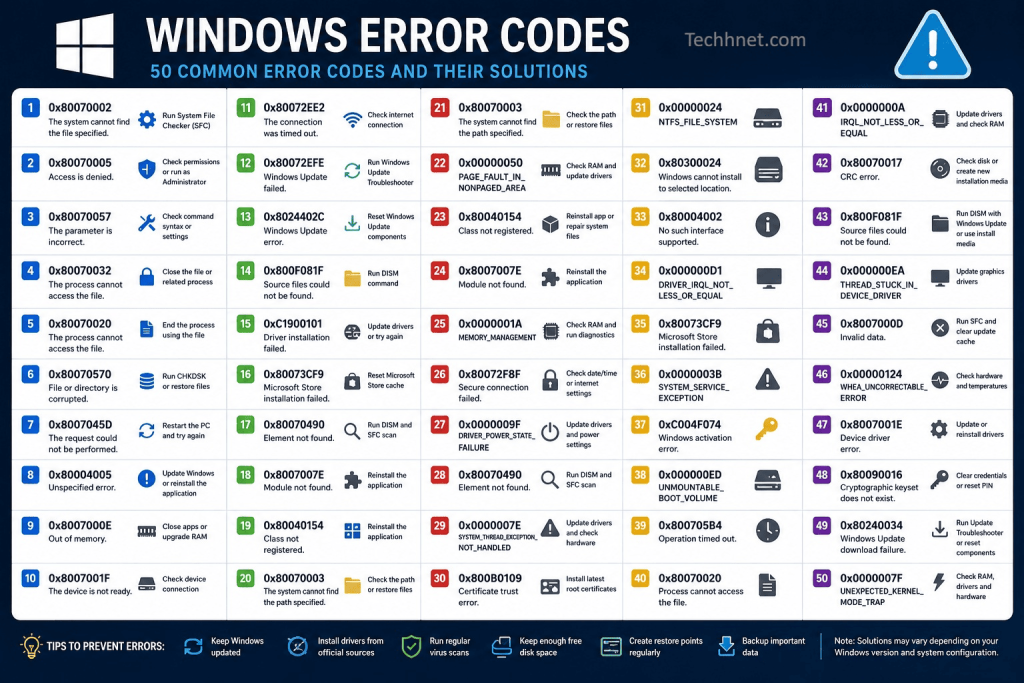
Windows is one of the most reliable operating systems available today, but even the most stable system occasionally runs into problems. Whether you’re installing updates, connecting hardware, launching applications, or booting your PC, unexpected Windows error codes can interrupt your workflow.
Understanding what these messages actually mean is the first step toward fixing them without unnecessary frustration.
Many users panic when they see an unfamiliar Windows error code on the screen. In reality, these codes are designed to help identify the source of a problem. Corrupted system files cause some errors, while others are linked to drivers, storage issues, Windows Update, network settings, or damaged software installations. Learning how to interpret these messages can save hours of troubleshooting and even prevent costly repairs.
This guide explains 50 common Windows error codes in clear, practical language. Instead of offering quick one-line fixes, each section walks through the causes of the problem, the symptoms you may notice, and proven solutions that work on both Windows 10 and Windows 11.
You’ll also find examples using Windows Settings, Device Manager, Command Prompt, and other built-in tools provided by Microsoft. By the end of this series, you’ll have a dependable reference for diagnosing and fixing many of the issues that Windows users encounter every day.
1. Error Code 0x80070057 – Invalid Parameter
Among the most common Windows error codes, 0x80070057 usually appears when Windows Update fails, a backup process stops unexpectedly, or storage-related tasks cannot complete. The error indicates that Windows received a parameter it could not process correctly.
Common causes
- Corrupted Windows Update files
- Incorrect regional settings
- Damaged system files
- File system corruption
- Storage configuration problems
Symptoms
- Windows Update repeatedly fails.
- Backup and Restore reports an unexpected error.
- Installation processes stop midway.
- Error message displays “The parameter is incorrect.”
Solution 1: Run the Windows Update Troubleshooter
Open Settings > System > Troubleshoot > Other troubleshooters.
Locate Windows Update and click Run.
Allow Windows to detect and automatically repair update-related issues.
Solution 2: Repair system files
Open Command Prompt as Administrator and run:
sfc /scannow
After it finishes, execute:
DISM /Online /Cleanup-Image /RestoreHealth
Restart your computer once both commands complete.
Solution 3: Verify region settings
Go to:
Settings > Time & Language > Language & Region
Confirm that your country, regional format, and language settings match your actual location.
2. Error Code 0x80070005 – Access Denied
This error usually means Windows doesn’t have permission to perform a requested action. It often appears during Windows Update, software installation, or system restore.
Among all Windows error codes, permission-related issues are some of the easiest to fix.
Common causes
- Administrator permissions missing
- Antivirus interference
- Corrupted user profile
- Incorrect folder permissions
Symptoms
- Updates fail repeatedly.
- Software refuses to install.
- System Restore cannot complete.
Solution 1: Run applications as Administrator
Right-click the application.
Choose Run as administrator.
If prompted by User Account Control, select Yes.
Solution 2: Disable antivirus temporarily
Some security software blocks system changes.
Temporarily disable third-party antivirus, complete the installation, then enable protection again.
Solution 3: Reset Windows Update components
Open Command Prompt as Administrator.
Run:
net stop wuauserv
net stop bits
Rename the SoftwareDistribution folder.
Then restart services:
net start wuauserv
net start bits
Try Windows Update again.
3. Error Code 0x80004005 – Unspecified Error
This is one of the broadest Windows error codes because it doesn’t identify a single cause. It can appear while extracting ZIP files, accessing shared folders, installing updates, or using virtual machines.
Common causes
- Corrupted archives
- Network sharing problems
- Damaged system files
- Windows Update corruption
Symptoms
- Files refuse to extract.
- Shared folders become inaccessible.
- Update installations fail.
Solution 1: Enable Network Discovery
Open:
Settings > Network & Internet > Advanced Network Settings > Advanced Sharing Settings
Enable:
- Network Discovery
- File and Printer Sharing
Restart the computer.
Solution 2: Check disk errors
Run:
chkdsk C: /f /r
Windows may schedule the scan to run after a reboot.
Solution 3: Update Windows
Navigate to:
Settings > Windows Update
Click Check for updates.
Install every available update.
4. Error Code 0x80244022 – Windows Update Timeout
When Microsoft’s update servers cannot respond in time, this error appears.
Many Windows error codes associated with Windows Update result from temporary network interruptions rather than damaged files.
Common causes
- Slow internet
- Microsoft server congestion
- Proxy configuration
- VPN interference
Symptoms
- Update download stops.
- Retry attempts fail.
- Windows Update freezes.
Solution 1: Restart networking
Go to:
Settings > Network & Internet
Disconnect and reconnect your internet connection.
Restart the router if needed.
Solution 2: Disable VPN
If connected through a VPN, disconnect it before downloading updates.
Solution 3: Retry later
Sometimes Microsoft’s update servers are overloaded.
Waiting several hours often resolves the issue.
5. Error Code 0x80070002 – File Not Found
This error occurs when Windows cannot locate files required for updates, installations, or backups.
Among frequently reported Windows error codes, this one is commonly linked to missing update files.
Common causes
- Interrupted updates
- Deleted installation files
- Incorrect date and time
- Corrupted update cache
Symptoms
- Update failures
- Backup interruptions
- Installation errors
Solution 1: Synchronize date and time
Open:
Settings > Time & Language > Date & Time
Enable:
- Set time automatically
- Set time zone automatically
Solution 2: Delete update cache
Stop Windows Update services.
Delete contents of:
C:\Windows\SoftwareDistribution
Restart Windows Update.
Solution 3: Restart update service
Open Services.
Find Windows Update.
Restart the service.
Retry updates.
6. Error Code 0x0000007B – Inaccessible Boot Device
This Blue Screen error appears when Windows cannot access the drive containing the operating system.
Certain Windows error codes occur before Windows even finishes loading, making boot-related troubleshooting especially important.
Common causes
- Corrupted boot configuration
- Faulty storage drivers
- BIOS storage mode changes
- Damaging hard drive sectors
Symptoms
- Blue Screen during startup
- Endless restart loop
- Windows never reaches login screen
Solution 1: Enter Automatic Repair
Power off during startup three consecutive times.
Windows launches Automatic Repair.
Select:
Advanced Options > Startup Repair
Solution 2: Repair boot files
Open Command Prompt from Recovery Environment.
Run:
bootrec /fixmbr
bootrec /fixboot
bootrec /rebuildbcd
Restart the computer.
Solution 3: Check BIOS storage mode
Enter BIOS.
Ensure SATA mode hasn’t unexpectedly changed from AHCI to RAID or IDE.
7. Error Code 0x80072EE7 – Server Name Could Not Be Resolved
Windows cannot contact Microsoft’s servers because DNS resolution failed.
Several internet-related Windows error codes originate from DNS configuration rather than Windows itself.
Common causes
- Incorrect DNS
- Router issues
- ISP outages
- Firewall restrictions
Symptoms
- Windows Update fails.
- Microsoft Store cannot connect.
- Activation problems.
Solution 1: Change DNS server
Open:
Settings > Network & Internet > Ethernet (or Wi-Fi)
Select your connection.
Edit DNS settings.
Use:
Primary:
8.8.8.8
Secondary:
8.8.4.4
Solution 2: Flush DNS
Run:
ipconfig /flushdns
Then:
ipconfig /renew
Restart Windows.
8. Error Code 0xC000021A – Fatal System Error
Windows terminates startup because essential system processes unexpectedly stopped.
This is one of the more serious Windows error codes because it usually prevents Windows from loading normally.
Common causes
- Corrupted drivers
- Failed updates
- Damaged registry
- Malware infection
Symptoms
- Blue Screen
- Automatic restart loop
- Startup failure
Solution 1: Boot into Safe Mode
Open Recovery Environment.
Choose:
Startup Settings > Restart
Press F4 for Safe Mode.
Remove recently installed software or drivers.
Solution 2: Perform System Restore
Go to:
Advanced Options > System Restore
Choose a restore point before the issue started.
9. Error Code 0x80070070 – Insufficient Disk Space
Windows requires additional free storage to complete updates or installations.
Many storage-related Windows error codes disappear once enough free space becomes available.
Common causes
- Full SSD
- Large temporary files
- Old Windows Update files
- Recycle Bin overflow
Symptoms
- Installation stops.
- Updates fail.
- Backup cannot continue.
Solution 1: Storage Sense
Open:
Settings > System > Storage
Enable Storage Sense.
Run cleanup immediately.
Solution 2: Disk Cleanup
Search for Disk Cleanup.
Select drive C.
Check:
- Temporary files
- Windows Update Cleanup
- Recycle Bin
- Delivery Optimization Files
Delete selected files.
Solution 3: Uninstall unused applications
Open:
Settings > Apps > Installed Apps
Remove programs you no longer use.
10. Error Code 0x800F0922 – Windows Update Installation Failed
This update error usually occurs when Windows cannot communicate with Microsoft’s servers or when the System Reserved partition lacks sufficient space.
Among modern Windows error codes, this one commonly appears after cumulative updates.
Common causes
- VPN interference
- Small System Reserved partition
- Firewall restrictions
- Corrupted update components
Symptoms
- Updates reach 98–100% before failing.
- Rollback begins automatically.
- Update history shows repeated failures.
Solution 1: Disconnect VPN
Disable VPN software before installing updates.
Restart Windows.
Retry the installation.
Solution 2: Reset Windows Update
Open Command Prompt as Administrator.
Execute:
DISM /Online /Cleanup-Image /RestoreHealth
After completion:
sfc /scannow
Restart Windows.
Solution 3: Install updates after a Clean Boot
Press Win + R.
Type:
msconfig
Under Services, hide Microsoft services and disable remaining third-party services.
Restart Windows.
Install updates.
11. Error Code 0x80070422 – Windows Update Service Is Disabled
Error code 0x80070422 appears when an essential Windows service is disabled. In most cases, users encounter this issue while trying to install updates, download apps from the Microsoft Store, or activate certain Windows features. Among frequently reported Windows error codes, this one is usually resolved by re-enabling the required services.
Common causes
- Windows Update service is disabled.
- Background Intelligent Transfer Service (BITS) is not running.
- Third-party optimization software has disabled system services.
- Incorrect system configuration.
Symptoms
- Windows Update cannot check for updates.
- Microsoft Store downloads fail.
- Security updates remain pending.
Solution 1: Enable the Windows Update service
Press Win + R, type services.msc, and press Enter.
Locate Windows Update.
Double-click the service.
Set Startup type to Automatic.
Click Start, then Apply and OK.
Solution 2: Restart Background Intelligent Transfer Service
In the Services window, locate Background Intelligent Transfer Service.
Ensure it is set to Automatic (Delayed Start) and is currently running.
Solution 3: Check Windows Settings
Open Settings > Windows Update.
Select Check for updates after restarting the computer.
12. Error Code 0xC0000005 – Access Violation
This error occurs when an application attempts to access memory that it is not allowed to use. It can affect games, productivity software, and even built-in Windows applications. Although it looks serious, many Windows error codes involving memory access can be fixed without reinstalling Windows.
Common causes
- Corrupted application files.
- Faulty RAM.
- Damaged system files.
- Antivirus conflicts.
Symptoms
- Programs crash immediately after opening.
- “Application Error” messages appear.
- Frequent unexpected shutdowns of specific software.
Solution 1: Repair system files
Open Command Prompt as Administrator and run:
sfc /scannow
Follow it with:
DISM /Online /Cleanup-Image /RestoreHealth
Solution 2: Test system memory
Search for Windows Memory Diagnostic.
Select Restart now and check for problems.
Allow Windows to complete the memory test.
Solution 3: Reinstall the affected application
If only one application is affected, uninstall it from Settings > Apps > Installed Apps, restart the computer, and install the latest version.
13. Error Code 0x80072EFD – Internet Connection Error
Windows displays this error when it cannot establish a secure connection to Microsoft’s online services. Similar Windows error codes often point to network configuration rather than operating system damage.
Common causes
- Internet connection problems.
- Firewall restrictions.
- Proxy server settings.
- VPN conflicts.
Symptoms
- Microsoft Store won’t open.
- Windows Update cannot connect.
- Activation fails.
Solution 1: Disable Proxy
Go to Settings > Network & Internet > Proxy.
Turn off Use a proxy server unless your organization requires one.
Solution 2: Reset network settings
Open Settings > Network & Internet > Advanced Network Settings > Network Reset.
Select Reset now.
Restart the PC.
Solution 3: Verify firewall settings
Open Windows Security > Firewall & Network Protection.
Ensure Microsoft services are not being blocked.
14. Error Code 0x803F8001 – Microsoft Store Licensing Error
This error usually appears when Windows cannot verify the license for an app purchased or downloaded from the Microsoft Store. Some Windows error codes specifically affect Store apps without impacting the rest of the operating system.
Common causes
- Microsoft account sync issues.
- Corrupted Store cache.
- Missing app license.
- Internet connectivity problems.
Symptoms
- Purchased apps refuse to launch.
- Store repeatedly asks you to buy an app you already own.
- Download failures.
Solution 1: Reset Microsoft Store
Press Win + R.
Type:
wsreset.exe
Press Enter.
The Store cache will be cleared automatically.
Solution 2: Sign out and back in
Open Microsoft Store.
Select your profile picture.
Sign out.
Restart Windows.
Sign in using the same Microsoft account.
Solution 3: Check app ownership
Open the Library section in Microsoft Store and verify that the app is listed under your purchases.
15. Error Code 0x8007001F – Audio Driver Error
Error 0x8007001F often appears after installing Windows updates. It usually affects audio playback or recording. Some Windows error codes become visible only after major feature updates replace existing drivers.
Common causes
- Corrupted audio drivers.
- Incompatible sound hardware.
- Failed Windows Update.
- Driver conflicts.
Symptoms
- No sound output.
- Audio services stop unexpectedly.
- Speakers disappear from available devices.
Solution 1: Run the audio troubleshooter
Open Settings > System > Troubleshoot > Other troubleshooters.
Find Playing Audio.
Click Run.
Solution 2: Reinstall audio drivers
Open Device Manager.
Expand Sound, Video and Game, Controllers.
Right-click the audio device.
Select Uninstall device.
Restart Windows.
The operating system should automatically reinstall the driver.
Solution 3: Install manufacturer drivers
Download the latest audio driver directly from your PC or motherboard manufacturer’s support website.
16. Error Code 0x80070035 – Network Path Not Found
This error appears when Windows cannot locate another computer or shared folder on a local network. Networking-related Windows error codes are often caused by incorrect sharing settings rather than hardware failure.
Common causes
- Network Discovery disabled.
- Incorrect shared folder permissions.
- Firewall blocks.
- Devices connected to different networks.
Symptoms
- Shared folders cannot be opened.
- Network computers disappear.
- File sharing stops working.
Solution 1: Enable Network Discovery
Open Settings > Network & Internet > Advanced Network Settings > Advanced Sharing Settings.
Enable:
- Network Discovery
- File and Printer Sharing
Solution 2: Verify workgroup
Right-click This PC.
Choose Properties.
Ensure both computers belong to the same workgroup if you’re using traditional local network sharing.
Solution 3: Allow File Sharing through Firewall
Open Windows Security > Firewall & Network Protection > Allow an app through firewall.
Ensure File and Printer Sharing is enabled.
17. Error Code 0x80070570 – File or Directory Is Corrupted
This error usually appears during Windows installation, file copying, or access to storage devices. Among storage-related Windows error codes, it often indicates drive corruption.
Common causes
- Bad sectors.
- Corrupted files.
- Faulty USB drive.
- Damaged installation media.
Symptoms
- File copy operations fail.
- Installation cannot continue.
- External drives become inaccessible.
Solution 1: Scan the drive
Open Command Prompt as Administrator.
Run:
chkdsk /f /r
Restart if prompted.
Solution 2: Recreate installation media
If installing Windows, recreate the USB installer using Microsoft’s Media Creation Tool.
Solution 3: Test another storage device
If the error occurs while copying files to an external drive, test a different USB device or cable.
18. Error Code 0xC1900101 – Driver Compatibility Problem
This error generally appears during Windows upgrades when incompatible drivers prevent installation. Outdated hardware drivers cause many upgrade-related Windows error codes.
Common causes
- Old graphics drivers.
- Outdated storage controller drivers.
- Unsupported hardware.
- Third-party antivirus software.
Symptoms
- Upgrade reaches a certain percentage before rolling back.
- Installation repeatedly fails.
- Unexpected restarts during setup.
Solution 1: Update drivers
Open Device Manager.
Update graphics, chipset, storage, and network drivers.
Solution 2: Disconnect unnecessary devices
Remove:
- USB flash drives
- External hard drives
- Printers
- Docking stations
Retry the upgrade.
Solution 3: Free storage space
Open Settings > System > Storage.
Ensure at least 25–30 GB of free space before installing a feature update.
19. Error Code 0x80070643 – Installation Failure
Error 0x80070643 commonly appears when installing Windows updates, Microsoft Office, or .NET Framework. Installation-related Windows error codes frequently involve damaged update components.
Common causes
- Corrupted Windows Installer.
- .NET Framework issues.
- Antivirus interference.
- Damaged update files.
Symptoms
- Updates repeatedly fail.
- Office installation stops unexpectedly.
- Installation logs show error 0x80070643.
Solution 1: Repair .NET Framework
Open Control Panel > Programs > Turn Windows features on or off.
Disable .NET Framework, restart, then enable it again.
Solution 2: Restart Windows Installer
Open Services.
Locate Windows Installer.
Restart the service.
Solution 3: Run Windows Update Troubleshooter
Go to Settings > System > Troubleshoot > Other troubleshooters.
Run the Windows Update troubleshooter.
20. Error Code 0x80073D02 – Application Is Currently Running
This error usually appears when trying to update or uninstall a Microsoft Store application while it is still active. Some Windows error codes require closing background processes before Windows can continue.
Common causes
- Application still running.
- Background services using the app.
- Store synchronization delay.
Symptoms
- Microsoft Store updates fail.
- App uninstall is unsuccessful.
- Installation pauses indefinitely.
Solution 1: Close the application
Press Ctrl + Shift + Esc to open Task Manager.
Locate the application.
Select End Task.
Retry the update.
Solution 2: Restart Windows
A simple restart often closes hidden background processes that continue using the application.
Solution 3: Reset the application
Open Settings > Apps > Installed Apps.
Select the affected application.
Choose Advanced Options.
Click Reset.
21. Error Code 0x80070003 – The System Cannot Find the Path Specified
Error 0x80070003 usually appears when Windows cannot locate the folder or file required to complete an operation. It is commonly seen during Windows Update, System Restore, or backup operations. Among frequently encountered Windows error codes, this one often points to missing directories or damaged update files rather than a serious operating system failure.
Common causes
- Missing or deleted system folders.
- Corrupted Windows Update cache.
- Invalid file paths.
- Interrupted backup operations.
Symptoms
- Windows Update repeatedly fails.
- System Restore cannot complete.
- Backup software displays path-related errors.
Solution 1: Run the Windows Update Troubleshooter
Open Settings > System > Troubleshoot > Other troubleshooters.
Locate Windows Update.
Click Run and follow the recommended fixes.
Solution 2: Clear the Windows Update cache
Stop the Windows Update service through Services.
Delete the contents of:
C:\Windows\SoftwareDistribution
Restart the service and check for updates again.
Solution 3: Verify the backup location
If the error occurs during a backup, make sure the destination drive is connected, accessible, and has sufficient free space.
22. Error Code 0x00000050 – PAGE_FAULT_IN_NONPAGED_AREA
This Blue Screen error occurs when Windows attempts to access memory that should always remain available but cannot be found. Hardware-related Windows error codes like this one are commonly linked to faulty RAM or problematic drivers.
Common causes
- Defective RAM.
- Corrupted drivers.
- Antivirus conflicts.
- Damaged system files.
Symptoms
- Blue Screen during startup.
- Random crashes while using applications.
- Frequent unexpected restarts.
Solution 1: Run Windows Memory Diagnostic
Search for Windows Memory Diagnostic.
Choose Restart now and check for problems.
Allow the memory test to complete.
Solution 2: Update device drivers
Open Device Manager.
Look for devices displaying a warning icon.
Update graphics, storage, and chipset drivers.
Solution 3: Check recently installed hardware
If the issue started after installing new RAM or another hardware component, remove it temporarily to determine whether it is causing the problem.
23. Error Code 0x80040154 – Class Not Registered
This error often appears when launching applications that rely on Windows components such as DLL files or COM objects. Missing or improperly registered system libraries cause some application-related Windows error codes.
Common causes
- Missing DLL files.
- Corrupted application installation.
- Damaged Windows components.
- Registry problems.
Symptoms
- Applications refuse to launch.
- Error messages appear immediately after opening software.
- Certain Windows features stop working.
Solution 1: Reinstall the application
Go to Settings > Apps > Installed Apps.
Uninstall the affected program.
Restart the computer and install the latest version.
Solution 2: Repair system files
Open Command Prompt as Administrator and run:
sfc /scannow
Restart the computer after the scan finishes.
Solution 3: Install pending Windows updates
Open Settings > Windows Update.
Select Check for updates and install all available updates.
24. Error Code 0x8007007E – Module Not Found
Error 0x8007007E indicates that Windows cannot locate a required module or system file. Missing program dependencies cause many Windows error codes associated with software installation.
Common causes
- Corrupted application files.
- Missing DLL files.
- Incomplete software installation.
- Outdated drivers.
Symptoms
- Programs fail to start.
- Installers stop unexpectedly.
- Driver installation errors.
Solution 1: Update Windows
Navigate to Settings > Windows Update.
Install all available updates before reinstalling the affected application.
Solution 2: Reinstall required software
Download a fresh installer from the software publisher.
Avoid using outdated installation files.
Solution 3: Scan for malware
Run Windows Security > Virus & Threat Protection > Quick Scan to ensure malicious software has not removed important system files.
25. Error Code 0x0000001A – MEMORY_MANAGEMENT
This Blue Screen error indicates memory management problems within Windows. While some Windows error codes are software-related, this one often requires checking both hardware and system integrity.
Common causes
- Faulty RAM.
- Corrupted system files.
- Overclocking instability.
- Storage errors.
Symptoms
- Blue Screen during heavy workloads.
- Random application crashes.
- Unexpected system restarts.
Solution 1: Disable overclocking
If CPU or memory overclocking is enabled in the BIOS, restore default settings.
Solution 2: Run memory diagnostics
Use Windows Memory Diagnostic to check RAM for hardware faults.
Solution 3: Check storage health
Run:
chkdsk C: /f /r
Allow Windows to repair any detected file system errors.
26. Error Code 0x80072F8F – Secure Connection Error
Error 0x80072F8F occurs when Windows cannot establish a secure connection to Microsoft’s servers. Incorrect system time or certificate validation issues often cause network-related Windows error codes like this one.
Common causes
- Incorrect date and time.
- Expired security certificates.
- Firewall interference.
- Internet connectivity problems.
Symptoms
- Windows Activation fails.
- Windows Update cannot connect.
- Microsoft Store errors.
Solution 1: Synchronize system time
Open Settings > Time & Language > Date & Time.
Enable:
- Set time automatically.
- Set time zone automatically.
Solution 2: Verify internet access
Open a web browser and confirm your connection is stable before retrying activation or updates.
Solution 3: Disable VPN temporarily
Disconnect from any VPN service and attempt the operation again.
27. Error Code 0x0000009F – DRIVER_POWER_STATE_FAILURE
This Blue Screen error usually appears when Windows cannot properly communicate with a device during sleep, hibernation, or shutdown. Driver-related Windows error codes often stem from outdated hardware drivers.
Common causes
- Old drivers.
- USB device conflicts.
- Power management issues.
- Graphics driver incompatibility.
Symptoms
- Blue Screen while shutting down.
- System freezes during sleep mode.
- Unexpected restarts after waking the PC.
Solution 1: Update drivers
Open Device Manager.
Update graphics, network, and storage drivers.
Solution 2: Change power settings
Go to Settings > System > Power & Battery.
Select Additional power settings.
Choose Balanced or Recommended power plan.
Solution 3: Disconnect external devices
Temporarily remove USB devices such as printers, webcams, and external drives before testing again.
28. Error Code 0x80070490 – Element Not Found
Error 0x80070490 generally appears when Windows Update or component-based services cannot locate required system elements. Update-related Windows error codes often involve damaged component stores.
Common causes
- Corrupted update components.
- Damaged system files.
- Interrupted Windows updates.
- Registry inconsistencies.
Symptoms
- Updates fail repeatedly.
- Microsoft Store errors.
- Installation interruptions.
Solution 1: Run DISM
Open Command Prompt as Administrator.
Run:
DISM /Online /Cleanup-Image /RestoreHealth
Restart the computer after completion.
Solution 2: Run System File Checker
Execute:
sfc /scannow
Allow Windows to repair damaged files automatically.
Solution 3: Retry Windows Update
Return to Settings > Windows Update.
Select Check for updates after restarting the system.
29. Error Code 0x0000007E – SYSTEM_THREAD_EXCEPTION_NOT_HANDLED
This Blue Screen error indicates that a system thread generated an exception which Windows could not recover from. Among serious Windows error codes, this one is commonly associated with incompatible drivers or hardware problems.
Common causes
- Graphics driver corruption.
- Faulty RAM.
- BIOS compatibility issues.
- Damaged system files.
Symptoms
- Blue Screen shortly after startup.
- Crashes while gaming.
- Frequent restart loops.
Solution 1: Boot into Safe Mode
Access the Windows Recovery Environment.
Choose Startup Settings.
Restart and press F4 to enter Safe Mode.
Remove recently installed drivers or software.
Solution 2: Update BIOS
Visit your motherboard or laptop manufacturer’s support page.
Install the latest BIOS only if it specifically addresses system stability or compatibility issues.
Solution 3: Update graphics drivers
Install the latest graphics driver provided by your GPU manufacturer.
30. Error Code 0x800B0109 – Certificate Trust Error
Error 0x800B0109 occurs when Windows cannot verify a certificate because the issuing authority is not trusted. Security-related Windows error codes often appear during software installation or Windows Update.
Common causes
- Missing root certificates.
- Incorrect system time.
- Corporate network certificate policies.
- Corrupted certificate store.
Symptoms
- Software installation fails.
- Windows Update errors.
- Certificate warnings in browsers.
Solution 1: Check date and time
Open Settings > Time & Language > Date & Time.
Ensure the date, time, and time zone are correct.
Solution 2: Install Windows updates
Microsoft regularly updates trusted root certificates through Windows Update.
Open Settings > Windows Update and install all available updates.
Solution 3: Verify certificate trust
If the issue occurs on a corporate network, contact your IT administrator to confirm the required certificates are installed correctly.
31. Error Code 0x00000024 – NTFS_FILE_SYSTEM
Error 0x00000024 is a Blue Screen error associated with the NTFS file system used by Windows. It usually appears when Windows detects corruption in the file system or encounters problems reading data from the storage drive. Among storage-related Windows error codes, this one often indicates that the drive should be checked as soon as possible to prevent data loss.
Common causes
- File system corruption.
- Bad sectors on the hard drive or SSD.
- Sudden power failures.
- Faulty storage cables.
Symptoms
- Blue Screen during startup.
- Files become inaccessible.
- Frequent disk-related errors.
- Slow system performance.
Solution 1: Run Check Disk
Open Command Prompt as Administrator and run:
chkdsk C: /f /r
Restart the computer if prompted so Windows can scan and repair the drive.
Solution 2: Check drive health
Open Command Prompt and run:
wmic diskdrive get status
If the drive reports anything other than “OK,” consider backing up your data immediately.
Solution 3: Verify physical connections
For desktop computers, ensure SATA and power cables are securely connected. Laptop users should check the storage drive only if they are comfortable opening the device or have it inspected by a technician.
32. Error Code 0x80300024 – Windows Cannot Install to the Selected Location
This error appears during Windows installation when Setup cannot install the operating system on the selected drive. Installation-related Windows error codes like this are often caused by disk configuration issues rather than faulty hardware.
Common causes
- Incorrect boot order.
- Multiple storage devices connected.
- Damaged partition table.
- Insufficient disk space.
Symptoms
- Windows installation stops.
- Partition selection fails.
- Setup refuses to continue.
Solution 1: Disconnect unnecessary drives
Remove external hard drives and USB storage devices before starting the installation.
Solution 2: Delete existing partitions
During Windows Setup, choose Custom Installation.
Delete old Windows partitions if they are no longer needed.
Create a new partition and continue with installation.
Note: Deleting partitions permanently removes all stored data.
Solution 3: Check BIOS boot priority
Enter the BIOS or UEFI firmware.
Ensure the target drive is recognized and configured as the primary installation drive.
33. Error Code 0x80004002 – No Such Interface Supported
This error usually occurs when Windows components required by an application become damaged or improperly registered. Some software-related Windows error codes can be resolved simply by repairing Windows system files.
Common causes
- Corrupted system components.
- Damaged registry entries.
- Incomplete software installation.
- Windows Explorer issues.
Symptoms
- Applications refuse to launch.
- Windows Explorer behaves unexpectedly.
- Certain control panel features stop working.
Solution 1: Restart Windows Explorer
Press Ctrl + Shift + Esc to open Task Manager.
Locate Windows Explorer.
Right-click and select Restart.
Solution 2: Repair system files
Open Command Prompt as Administrator and run:
sfc /scannow
Restart the computer after the repair is complete.
Solution 3: Install Windows updates
Go to Settings > Windows Update.
Install all pending updates to replace damaged system components.
34. Error Code 0x000000D1 – DRIVER_IRQL_NOT_LESS_OR_EQUAL
This Blue Screen error indicates that a device driver attempted to access memory incorrectly. Driver-related Windows error codes frequently occur after installing new hardware or updating existing drivers.
Common causes
- Faulty network drivers.
- Graphics driver conflicts.
- Outdated hardware drivers.
- Defective RAM.
Symptoms
- Blue Screen during startup.
- Random crashes while gaming.
- System freezes.
Solution 1: Update drivers
Open Device Manager.
Update any devices displaying warning icons.
Solution 2: Roll back recent drivers
If the problem began after a driver update:
Open Device Manager.
Right-click the affected device.
Select Properties > Driver > Roll Back Driver.
Solution 3: Test memory
Run Windows Memory Diagnostic to check for hardware problems.
35. Error Code 0x80073CF9 – Microsoft Store Installation Failed
Error 0x80073CF9 appears when Windows cannot install or update Microsoft Store applications. Missing permissions or corrupted cache files cause several Windows error codes affecting Store apps.
Common causes
- Corrupted Store cache.
- Missing installation folders.
- Storage permission issues.
- Interrupted downloads.
Symptoms
- Store downloads fail.
- Apps remain stuck at pending.
- Installation repeatedly stops.
Solution 1: Reset Microsoft Store
Press Win + R.
Type:
wsreset.exe
Press Enter.
The Store will reopen after clearing its cache.
Solution 2: Verify storage settings
Open Settings > System > Storage.
Confirm there is enough free space on the installation drive.
Solution 3: Restart Microsoft Store Install Service
Open Services.
Locate Microsoft Store Install Service if available on your Windows version.
Restart the service.
36. Error Code 0x0000003B – SYSTEM_SERVICE_EXCEPTION
This Blue Screen error occurs when Windows encounters an exception while executing a system service. Many advanced Windows error codes involve interactions between drivers, memory, and core Windows services.
Common causes
- Graphics driver problems.
- Corrupted RAM.
- Faulty system files.
- Third-party security software.
Symptoms
- Random Blue Screens.
- Crashes while editing videos or gaming.
- System instability.
Solution 1: Update graphics drivers
Download the latest graphics driver directly from the GPU manufacturer’s official website.
Solution 2: Run DISM
Open Command Prompt as Administrator.
Execute:
DISM /Online /Cleanup-Image /RestoreHealth
Solution 3: Remove recently installed software
If crashes began after installing new software, uninstall it from Settings > Apps > Installed Apps and observe whether stability improves.
37. Error Code 0xC004F074 – Windows Activation Error
Error 0xC004F074 is related to Windows activation, especially on systems managed through organizational licensing servers. Activation-related Windows error codes can also appear if the device cannot contact Microsoft’s activation service.
Common causes
- Activation server unavailable.
- Incorrect product key.
- System time mismatch.
- Organization licensing issues.
Symptoms
- Windows reports it is not activated.
- Personalization settings become restricted.
- Activation attempts fail.
Solution 1: Verify internet connection
Open Settings > Network & Internet.
Ensure the computer has a stable internet connection.
Solution 2: Run Activation Troubleshooter
Open Settings > System > Activation.
If available, select Troubleshoot.
Follow the recommended steps.
Solution 3: Check system time
Open Settings > Time & Language > Date & Time.
Enable automatic date and time synchronization.
38. Error Code 0x000000ED – UNMOUNTABLE_BOOT_VOLUME
This Blue Screen error indicates Windows cannot access the system partition during startup. Boot-related Windows error codes like this may require using the Windows Recovery Environment.
Common causes
- Corrupted file system.
- Damaged boot partition.
- Failing storage drive.
- Interrupted Windows updates.
Symptoms
- Computer never reaches the login screen.
- Endless restart loop.
- Blue Screen immediately after powering on.
Solution 1: Launch Startup Repair
Boot into the Windows Recovery Environment.
Select:
Advanced Options > Startup Repair.
Allow Windows to attempt automatic repairs.
Solution 2: Repair the file system
Open Command Prompt from recovery mode.
Run:
chkdsk C: /f /r
Solution 3: Check storage hardware
If the error continues, test the SSD or hard drive using the manufacturer’s diagnostic utility.
39. Error Code 0x800705B4 – Operation Timed Out
This error usually appears when Windows Update or Windows Defender takes longer than expected to complete an operation. Timeout-related Windows error codes are often caused by background software interfering with Windows services.
Common causes
- Slow internet connection.
- Antivirus conflicts.
- Windows Update service issues.
- Heavy system load.
Symptoms
- Updates stop unexpectedly.
- Windows Defender scans never finish.
- Installation processes freeze.
Solution 1: Restart update services
Open Services.
Restart:
- Windows Update
- Background Intelligent Transfer Service
Solution 2: Perform a Clean Boot
Press Win + R.
Type msconfig.
Disable unnecessary startup services and restart the computer.
Solution 3: Install updates individually
If multiple updates are pending, install them one at a time to identify the problematic package.
40. Error Code 0x80070020 – Process Cannot Access the File
Error 0x80070020 appears when another process is already using a file that Windows Update or another application requires. File access Windows error codes often result from background programs locking important files.
Common causes
- Antivirus scanning files.
- Backup software running.
- Windows Update conflicts.
- Background applications.
Symptoms
- Updates repeatedly fail.
- Software installation stops.
- File replacement errors.
Solution 1: Restart the computer
A restart closes processes that may be locking the required files.
Solution 2: Disable third-party antivirus temporarily
Temporarily turn off antivirus protection while installing updates or software.
Remember to enable protection again once the installation finishes.
Solution 3: Close background applications
Open Task Manager.
End unnecessary applications before retrying the installation.
41. Error Code 0x0000000A – IRQL_NOT_LESS_OR_EQUAL
Error 0x0000000A is a Blue Screen of Death (BSOD) that occurs when Windows or a device driver attempts to access protected memory at an invalid interrupt request level (IRQL). Among the most critical Windows error codes, this one is commonly associated with faulty drivers or defective hardware.
Common causes
- Corrupted or outdated drivers.
- Faulty RAM modules.
- BIOS compatibility issues.
- Hardware conflicts.
Symptoms
- Random Blue Screen crashes.
- Restarts during gaming or heavy workloads.
- System instability after installing new hardware.
Solution 1: Update device drivers
Open Device Manager.
Update graphics, storage, network, and chipset drivers.
Solution 2: Test RAM
Run Windows Memory Diagnostic.
If problems are detected, replace the faulty memory module.
Solution 3: Reset BIOS settings
Enter the BIOS or UEFI firmware.
Load the default settings and save the changes before restarting.
42. Error Code 0x80070017 – CRC Error
This error usually indicates that Windows cannot read data correctly due to corruption or a damaged installation media. Storage-related Windows error codes like this often appear during Windows installation or large file transfers.
Common causes
- Corrupted installation files.
- Scratched DVDs or faulty USB drives.
- Bad sectors on the storage drive.
- Unstable memory.
Symptoms
- Windows installation stops unexpectedly.
- Files fail to copy.
- Backup restoration errors.
Solution 1: Create new installation media
Download the latest Windows installation files using Microsoft’s Media Creation Tool.
Create a fresh bootable USB drive.
Solution 2: Check the storage drive
Run:
chkdsk C: /f /r
Restart the computer if prompted.
Solution 3: Test another USB port
If using a bootable USB drive, plug it into another USB port, preferably a USB 2.0 port if available.
43. Error Code 0x800F081F – Source Files Could Not Be Found
Error 0x800F081F appears when Windows cannot locate the files required to install optional features or repair system components. Repair-related Windows error codes often involve the Windows component store.
Common causes
- Missing installation files.
- Corrupted Windows image.
- Incomplete updates.
- Damaged component store.
Symptoms
- DISM repair commands fail.
- Optional Windows Features cannot be installed.
- Update failures.
Solution 1: Run DISM with Windows Update
Open Command Prompt as Administrator and run:
DISM /Online /Cleanup-Image /RestoreHealth
Ensure the computer is connected to the internet.
Solution 2: Install pending updates
Open Settings > Windows Update.
Install every available update before retrying the repair.
Solution 3: Use Windows installation media
If DISM cannot download repair files, specify a Windows installation source that matches your installed Windows version.
44. Error Code 0x000000EA – THREAD_STUCK_IN_DEVICE_DRIVER
This Blue Screen error usually indicates that the graphics driver has stopped responding. Graphics-related Windows error codes are especially common after installing incompatible drivers.
Common causes
- Corrupted graphics drivers.
- GPU overheating.
- Driver incompatibility.
- Hardware failure.
Symptoms
- Blue Screen while gaming.
- Screen freezes.
- Display driver crashes.
Solution 1: Update graphics drivers
Download the newest driver from your graphics card manufacturer’s website.
Solution 2: Monitor GPU temperature
Use hardware monitoring software to ensure temperatures remain within safe limits.
Solution 3: Clean the graphics card
Remove dust from cooling fans and ensure proper airflow inside the computer case.
45. Error Code 0x8007000D – Invalid Data
Error 0x8007000D occurs when Windows encounters corrupted or unreadable data during updates or installations. Many Windows error codes involving updates are resolved by repairing damaged system files.
Common causes
- Corrupted update downloads.
- Damaged system files.
- Storage corruption.
- Interrupted installations.
Symptoms
- Windows Update fails repeatedly.
- Software installation cannot complete.
- Unexpected error messages.
Solution 1: Run System File Checker
Execute:
sfc /scannow
Restart after the repair finishes.
Solution 2: Clear the update cache
Delete the contents of the SoftwareDistribution folder after stopping Windows Update services.
Solution 3: Retry the installation
Restart the computer and attempt the update again.
46. Error Code 0x00000124 – WHEA_UNCORRECTABLE_ERROR
This Blue Screen error generally indicates a hardware problem reported by the Windows Hardware Error Architecture (WHEA). Hardware-related Windows error codes like this require careful diagnosis.
Common causes
- CPU overheating.
- Faulty RAM.
- Failing SSD or hard drive.
- Power supply instability.
Symptoms
- Sudden Blue Screen crashes.
- Restarts during demanding tasks.
- Random shutdowns.
Solution 1: Check temperatures
Ensure CPU and GPU temperatures remain within normal operating ranges.
Solution 2: Remove overclocking
Restore default BIOS settings if the processor or memory has been overclocked.
Solution 3: Update BIOS
Install the latest BIOS version only if the manufacturer recommends it for improved stability.
47. Error Code 0x8007001E – Device Driver Error
Error 0x8007001E usually indicates that Windows encountered an unexpected problem while communicating with a device driver. Driver-related Windows error codes can affect printers, storage devices, graphics cards, and network adapters.
Common causes
- Corrupted drivers.
- Unsupported hardware.
- Driver conflicts.
- Incomplete installations.
Symptoms
- Hardware stops responding.
- Device installation fails.
- System freezes.
Solution 1: Update drivers
Open Device Manager.
Install the latest driver for the affected hardware.
Solution 2: Uninstall and reinstall the device
Right-click the device.
Choose Uninstall Device.
Restart Windows to reinstall it automatically.
Solution 3: Check manufacturer support
Download certified drivers from the hardware manufacturer’s official support page.
48. Error Code 0x80090016 – Cryptographic Keyset Does Not Exist
This error commonly appears during Microsoft account authentication, Office activation, or Windows sign-in when encryption keys become corrupted. Authentication-related Windows error codes often involve Windows credentials.
Common causes
- Corrupted credential cache.
- TPM issues.
- Damaged user profile.
- Microsoft account synchronization problems.
Symptoms
- Office activation fails.
- Windows Hello stops working.
- Microsoft account login errors.
Solution 1: Clear Windows credentials
Open Control Panel > Credential Manager.
Remove outdated Microsoft credentials.
Restart the computer.
Solution 2: Reconfigure Windows Hello
Open Settings > Accounts > Sign-in options.
Remove and recreate your Windows Hello PIN.
Solution 3: Synchronize your Microsoft account
Ensure the device has an active internet connection and verify that your Microsoft account is properly signed in.
49. Error Code 0x80240034 – Windows Update Download Failure
Error 0x80240034 appears when Windows Update cannot download update packages successfully. Download-related Windows error codes are often linked to temporary connectivity issues or corrupted update components.
Common causes
- Interrupted downloads.
- Network instability.
- Corrupted update cache.
- Firewall restrictions.
Symptoms
- Updates remain at 0%.
- Downloads repeatedly restart.
- Installation never begins.
Solution 1: Run the Windows Update Troubleshooter
Open Settings > System > Troubleshoot > Other troubleshooters.
Run the Windows Update troubleshooter.
Solution 2: Reset Windows Update components
Restart the Windows Update and Background Intelligent Transfer services before checking for updates again.
Solution 3: Verify internet stability
If using Wi-Fi, move closer to the router or use a wired Ethernet connection for large updates.
50. Error Code 0x0000007F – UNEXPECTED_KERNEL_MODE_TRAP
Error 0x0000007F is a serious Blue Screen error indicating that the processor generated a trap the Windows kernel could not handle. Among advanced Windows error codes, this one is often associated with hardware or low-level system problems.
Common causes
- Faulty RAM.
- CPU overheating.
- BIOS issues.
- Corrupted drivers.
Symptoms
- Random Blue Screen crashes.
- System freezes under heavy workloads.
- Unexpected reboots.
Solution 1: Test system memory
Run Windows Memory Diagnostic.
Replace defective RAM if errors are found.
Solution 2: Check cooling
Ensure fans are functioning properly and remove dust from cooling vents.
Solution 3: Update critical drivers
Install the latest chipset and storage drivers supplied by your computer or motherboard manufacturer.
Frequently Asked Questions About Windows error codes
Can I fix most Windows errors without reinstalling Windows?
Yes. Most problems can be resolved using built-in utilities such as System File Checker (SFC), DISM, Startup Repair, Windows Update Troubleshooter, Device Manager, and Check Disk. Reinstalling Windows should generally be considered only after other troubleshooting methods have failed.
What causes Windows error codes?
Error codes can be triggered by many different factors, including corrupted system files, outdated drivers, failed Windows updates, damaged storage devices, memory problems, malware infections, software conflicts, and incorrect system settings.
How can I prevent Windows errors?
Keeping Windows updated, installing drivers from trusted sources, maintaining adequate free disk space, scanning for malware regularly, and creating restore points before major system changes can significantly reduce the chances of encountering system errors.
Should I ignore an error if my computer still works?
No. Even if the computer appears to function normally, recurring errors may indicate an underlying issue that could worsen over time. Addressing the cause early can prevent future crashes or data loss.
Does hardware always cause Blue Screen errors?
Not necessarily. Although faulty hardware is a common cause, incompatible drivers, corrupted system files, and unstable software can also trigger Blue Screen errors.
Conclusion on Most Common Windows error codes
Windows is a powerful and feature-rich operating system, but no software is completely immune to problems. Error messages can appear unexpectedly, whether you’re installing updates, launching applications, connecting new hardware, or simply starting your computer. While these messages may seem confusing at first, they are designed to help identify the source of the issue and guide the troubleshooting process.
Throughout this guide, we’ve covered fifty of the most common Windows errors along with practical, step-by-step solutions using built-in tools such as Windows Settings, Device Manager, Command Prompt, Windows Update, Startup Repair, Windows Security, and System Restore.
In many situations, simple actions like updating drivers, repairing system files, clearing the Windows Update cache, or adjusting system settings are enough to restore normal operation without requiring advanced technical knowledge.
Regular system maintenance is equally important. Installing Windows updates promptly, keeping drivers up to date, monitoring available storage space, creating restore points before making significant changes, and maintaining reliable backups can greatly reduce the likelihood of future problems. These preventive habits not only improve system stability but also help protect valuable files and minimize downtime.
By learning how to recognize and troubleshoot these Windows error codes, you can respond more confidently whenever a problem occurs. Instead of viewing an error message as a major setback, you’ll have the knowledge to identify the likely cause, apply the appropriate fix, and keep your Windows PC running smoothly for years to come.