As we all know, auto HDR is one of the most impressive visual features introduced in Windows 11. It allows many older DirectX games that were originally designed for Standard Dynamic Range (SDR) displays to benefit from High Dynamic Range (HDR), producing brighter highlights, deeper contrast, and richer colors without requiring native HDR support from the game itself.
However, not every game works perfectly with Auto HDR.
Some OpenGL-based games display severe color problems when Auto HDR is enabled. Instead of richer colors, users may encounter:
- Inverted or negative-looking colors.
- Purple or green image tint.
- Washed-out lighting.
- Extremely dark scenes.
- Bright areas appearing black.
- Incorrect gamma or contrast.
- Flickering when switching between fullscreen and borderless mode.
These issues are especially common in older OpenGL titles that were never designed with HDR rendering pipelines in mind.
The good news is that Windows 11 offers several ways to eliminate or work around these problems. This guide explains why Auto HDR causes color inversion in OpenGL games and walks through the most effective fixes, from simple Windows settings to advanced graphics configuration.
Why Auto HDR Causes Color Inversion in OpenGL Games?
Understanding the cause makes the fixes easier to understand.
Auto HDR was primarily designed around DirectX games.
This feature is designed to analyze SDR output, estimate brightness values, and convert the image into HDR in real time. This process works exceptionally well for DirectX 11 and DirectX 12 titles because Microsoft has direct control over those rendering pipelines.
OpenGL is different.
Many OpenGL games:
- use older color spaces.
- output legacy gamma values.
- rely on fixed-function rendering.
- bypass newer Windows graphics optimizations.
When Windows attempts to apply Auto HDR to these rendering methods, the HDR conversion may interpret color values incorrectly.
Instead of:
Dark → Midtone → Bright
Windows may interpret the values more like:
Bright → Dark
Dark → Bright
The result is a partially inverted image where colors appear completely wrong.
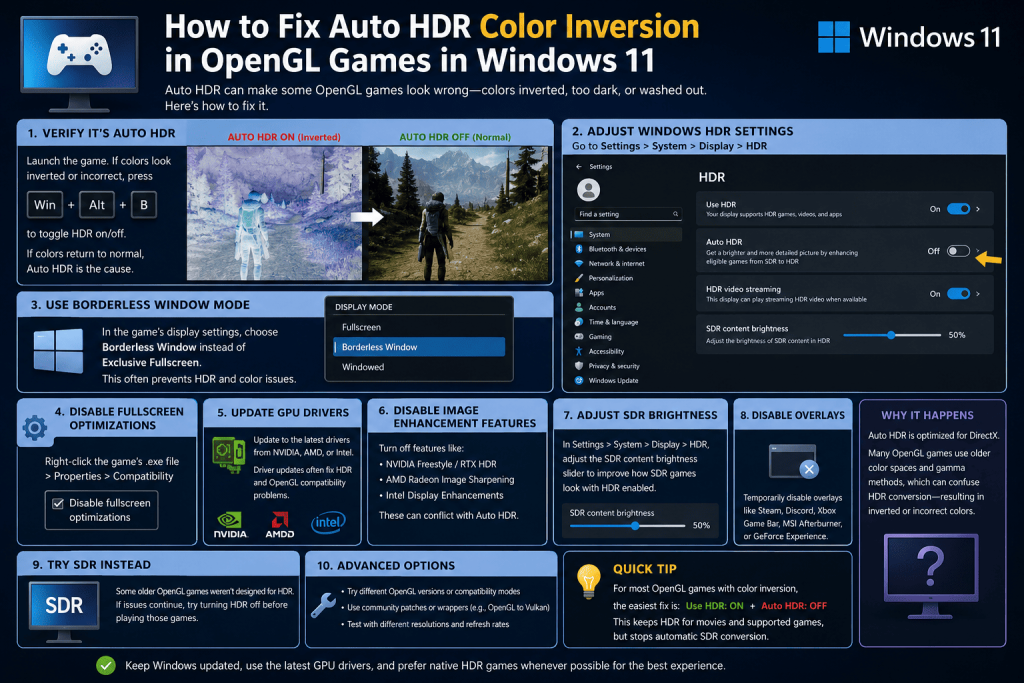
Verify That Auto HDR Is the Actual Cause
Before changing settings, confirm that Auto HDR is responsible.
Launch the game.
If the colors immediately become inverted, press:
Win + Alt + B
This keyboard shortcut toggles HDR on and off instantly.
If the colors immediately return to normal after HDR is disabled, Auto HDR is almost certainly the source of the issue.
1: Disable Auto HDR for the Problem Game
This is the simplest and most reliable solution.
Open Windows HDR Settings
Navigate to:
Settings → System → Display → HDR
If your monitor supports HDR, you’ll see options such as:
Use HDR              On

Auto HDR             On

HDR Video Streaming  On
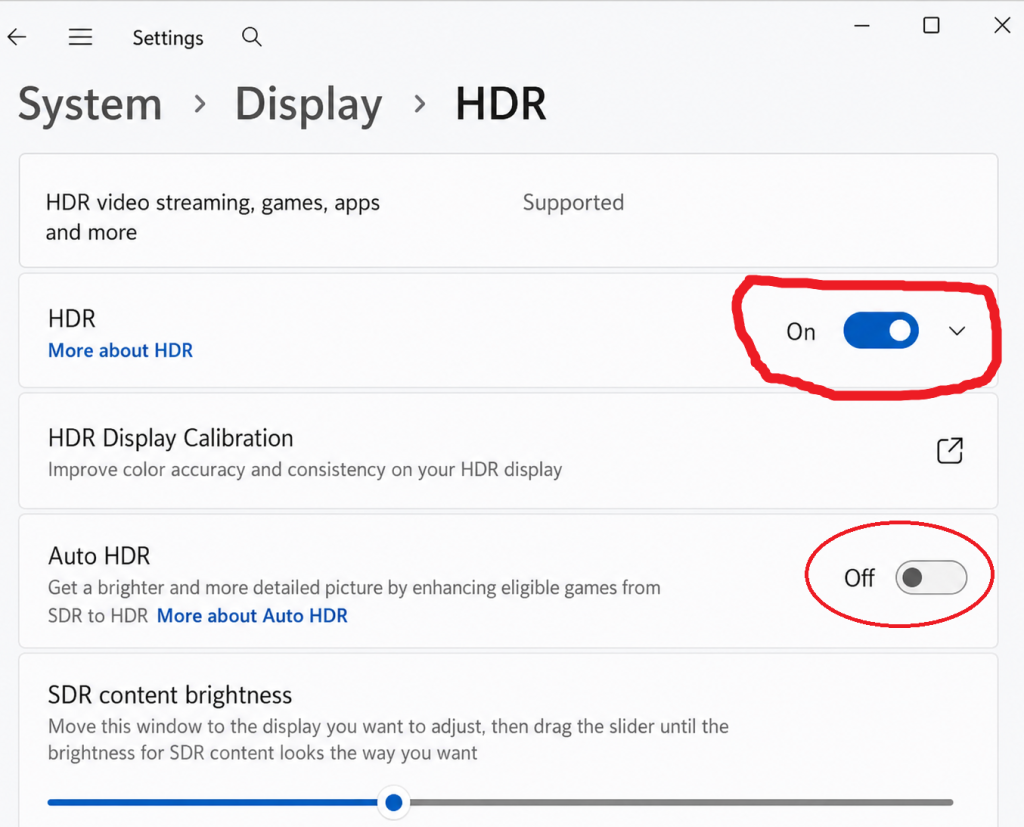
If only OpenGL games are affected, try turning Auto HDR off while leaving Use HDR enabled.
This preserves HDR for movies and native HDR games while preventing Windows from automatically converting SDR games.
Many users mistakenly disable HDR entirely when only Auto HDR is problematic.
2: Turn Off Auto HDR but Keep HDR Enabled
Windows separates HDR into two distinct features.
Example:
Incorrect approach
Use HDR = Off
Result:
- HDR movies disabled.
- Native HDR games disabled.
- Desktop returns to SDR.
Better approach:
Use HDR = On

Auto HDR = Off
Result:
- Native HDR games still work.
- HDR videos continue working.
- Only automatic SDR conversion is disabled.
This is usually the best compromise.
3: Use Borderless Window Instead of Exclusive Fullscreen
Some OpenGL engines interact poorly with HDR when using exclusive fullscreen.
Many games offer options such as:
Fullscreen

Windowed

Borderless Window
Choose Borderless Window whenever possible.
Why it helps:
Windows’ Desktop Window Manager (DWM) handles composition differently in borderless mode, which can avoid color conversion issues that occur in exclusive fullscreen.
Many players report that simply changing display mode eliminates inverted colors without touching HDR settings.
4: Disable Windows Optimizations for the Game
Windows 11 includes compatibility options that sometimes interfere with older rendering pipelines.
Locate the game’s executable (.exe), then:
- Right-click the executable.
- Select Properties.
- Open the Compatibility tab.
- Click Change high DPI settings if needed, then return.
- Check Disable fullscreen optimizations.
- Click Apply and OK.
Although this setting is mainly intended for fullscreen behavior, it can also influence how Windows presents frames to the display, occasionally resolving HDR-related rendering issues.
5: Update GPU Drivers
Driver updates often include fixes for HDR handling, OpenGL compatibility, and Windows graphics stack improvements.
Both NVIDIA, AMD, and Intel regularly release updates addressing:
- HDR bugs
- OpenGL rendering problems
- color management issues
- Windows 11 compatibility
If the issue appeared after a Windows update, installing the latest graphics driver—or temporarily rolling back to a previous stable version—may restore correct behavior.
6: Disable Image Enhancement Features
Several GPU driver features modify colors after the game has rendered its image.
Examples include:
NVIDIA
- RTX Video HDR
- Image Scaling
- Freestyle Filters
- Digital Vibrance adjustments
AMD
- Radeon Image Sharpening
- Radeon Boost
- Custom Color
- Radeon Super Resolution
Intel
- Display Color Enhancement
- Contrast Enhancement
- Dynamic Range Expansion
These enhancements can conflict with Auto HDR, causing exaggerated color shifts or inversion. Disable them temporarily to determine whether one of these features is contributing to the problem.
7: Try SDR Instead of HDR for Older OpenGL Games
Some OpenGL titles simply were never intended for HDR displays.
Games released during the early 2000s frequently:
- Assume SDR gamma.
- Use 8-bit textures.
- Implement custom brightness algorithms.
- Rely on fixed-function OpenGL pipelines.
For these games, HDR conversion often offers little visual benefit.
Disabling HDR before launching them may produce a more faithful image with fewer compatibility issues.
8: Adjust SDR Content Brightness
Windows includes a slider specifically for SDR content when HDR is enabled.
Go to:
Settings → System → Display → HDR
Locate the SDR content brightness slider.
For example:
SDR Content Brightness

0%
25%
50%
75%
100%
If SDR games appear washed out or overly dark after disabling Auto HDR, fine-tuning this slider can improve desktop and game appearance without affecting native HDR content.
9: Disable Third-Party Overlays
Applications that inject overlays into games can interfere with rendering and color conversion.
Examples include:
- MSI Afterburner
- RivaTuner Statistics Server (RTSS)
- Discord overlay
- Steam overlay
- Xbox Game Bar overlays
- GeForce Experience overlays
Temporarily disable these overlays and test the game again. While overlays are not a common cause of color inversion, they can complicate presentation paths and make troubleshooting more difficult.
10: Test Different OpenGL Rendering Modes
Some games support launch options or community patches that change how they render.
Examples include:
- Switching between OpenGL versions.
- Forcing compatibility profile.
- Forcing core profile.
- Using OpenGL wrappers.
- Translating OpenGL calls through Vulkan (such as with community-developed wrappers).
Changing the rendering path may bypass the specific interaction that causes Auto HDR to misinterpret the game’s output.
Advanced Analysis: Why DirectX Usually Works Better Than OpenGL
The difference largely comes down to integration.
DirectX is developed alongside Windows, allowing Microsoft to optimize features such as Auto HDR, variable refresh rate, and advanced presentation models for DirectX applications.
OpenGL, by contrast, is an open standard implemented by graphics driver vendors. Older OpenGL games often use legacy rendering techniques that predate modern HDR workflows. As a result, Windows has less context when attempting to infer brightness and color information for Auto HDR.
This doesn’t mean OpenGL is inherently incompatible with HDR; rather, it means the automatic conversion process has fewer reliable cues to work with. Games that already support native HDR, regardless of graphics API, generally avoid these problems because they provide explicit HDR metadata instead of relying on Windows to estimate it.
How to Prevent Future HDR Issues?
To minimize compatibility problems:
- Keep Windows 11 fully updated.
- Install the latest stable GPU drivers.
- Prefer native HDR support whenever available.
- Use Auto HDR primarily with DirectX games that lack native HDR.
- Test borderless mode if fullscreen causes display issues.
- Avoid stacking multiple color enhancement features on top of Auto HDR.
- Maintain a calibrated HDR display to ensure accurate brightness and color reproduction.
Frequently Asked Questions About How to Fix Auto HDR Color Inversion in OpenGL Games in Windows 11
Does Auto HDR support OpenGL games?
Some OpenGL games can trigger Auto HDR, but support is inconsistent. Because Auto HDR was designed primarily with DirectX in mind, older OpenGL titles are more likely to experience rendering or color anomalies.
Why are my game colors negative or inverted?
This usually indicates that the HDR conversion process has misinterpreted the game’s SDR output. Legacy OpenGL rendering techniques and outdated color assumptions can contribute to this behavior.
Should I disable HDR completely?
Not necessarily. If native HDR games and HDR video playback work correctly, leave Use HDR enabled and disable only Auto HDR. This preserves HDR where it is intended while avoiding problematic automatic conversions.
Can updating drivers fix the problem?
Yes. Graphics driver updates frequently include fixes for HDR handling, OpenGL compatibility, and presentation behavior. If the issue began after a system update, testing both newer and previously stable drivers can be worthwhile.
Does Windows 10 have the same issue?
Windows 11 expanded and refined Auto HDR support compared with Windows 10. While some OpenGL compatibility issues can occur on either operating system, Auto HDR-related color inversion is more commonly encountered in Windows 11 because the feature is more widely available and enabled by more users.
Conclusion on Fix Auto HDR Color Inversion in OpenGL Games in Windows 11
Auto HDR is an excellent feature for breathing new life into SDR games, but it is not universally compatible with every graphics API or rendering technique. OpenGL titles—particularly older games—can exhibit inverted colors, incorrect gamma, or other visual artifacts because Windows must estimate HDR values from legacy SDR output.
In most cases, the issue can be resolved by disabling Auto HDR while keeping HDR enabled, using borderless window mode, adjusting Windows HDR settings, updating graphics drivers, or disabling conflicting image enhancement features.
But remember understanding how Windows processes HDR content allows you to choose the least disruptive solution, preserving the benefits of HDR for compatible games while maintaining accurate color reproduction in older OpenGL titles.