
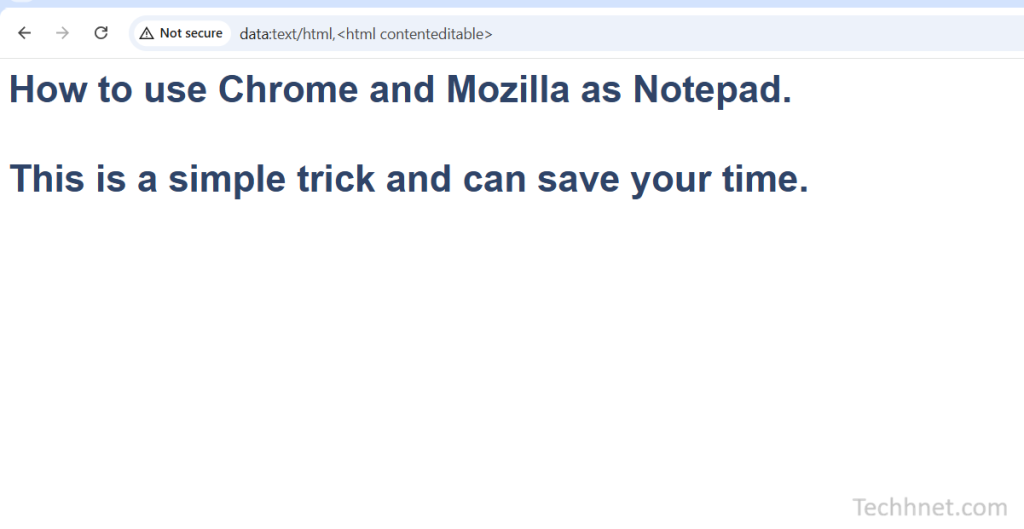
Do you know how to use Chrome and Mozilla as Notepad? Lets me explain to you simple tricks for quick note-taking.
Most people use Google Chrome and Mozilla Firefox to browse the internet, check email, stream videos, or work online. However, very few people know that these browsers can also work as a simple notepad.
This hidden feature is incredibly useful when you need to jot down a quick idea, save temporary text, or draft something without opening a dedicated notes application.
Learning how to use Chrome and Mozilla as Notepad can save time and make your workflow more efficient. Whether you’re a student, writer, developer, or office worker, this little browser trick is worth knowing.
What Does It Mean to Use Chrome and Mozilla as Notepad?
Using Chrome and Mozilla as Notepad simply means turning your browser into a temporary text editor. Instead of opening Windows Notepad or installing another note-taking application, you can create a blank editable page directly inside your browser.
This feature relies on a built-in browser command that makes a webpage editable. It doesn’t require any extensions, downloads, or additional software, making it one of the easiest productivity hacks available.
Why Use Your Browser as a Notepad?
There are many situations where using your browser as a notepad makes sense.
For example, you may need to quickly copy and edit text while browsing websites. Perhaps you’re researching a topic and want to collect notes in one place without switching between multiple applications. Maybe you’re using a public computer where installing software isn’t possible.
In these situations, Chrome and Mozilla as Notepad becomes a practical solution because it’s fast, lightweight, and always available.
Some common benefits include:
- Instant access without installing software.
- A clean interface free from distractions.
- Perfect for temporary notes.
- Useful for drafting emails or articles.
- Works on almost any computer with Chrome or Firefox installed.
How to Use Chrome as a Notepad
Turning Google Chrome into a simple text editor takes only a few seconds.
Open Chrome and click on the address bar. Type the following command exactly as shown:
data:text/html,<html contenteditable>
Press Enter.
A blank page will appear, and you can click anywhere to start typing. The page behaves like a simple text editor, allowing you to write, edit, copy, and paste text.
This is one of the easiest ways to use Chrome and Mozilla as Notepad without relying on third-party tools.
How to Use Mozilla Firefox as a Notepad
Mozilla Firefox supports the same trick.
Launch Firefox, enter the same command into the address bar, and press Enter:
data:text/html,<html contenteditable>
You’ll immediately see a blank editable page. Click anywhere inside the page and begin typing your notes.
Since the feature works almost identically in Firefox, many users appreciate Chrome and Mozilla as Notepad because the experience remains consistent across both browsers.
Practical Uses
Although this feature is simple, it can be surprisingly helpful.
Writers often use it to brainstorm article ideas before moving them into a word processor. Students can create rough lecture notes while researching online. Developers sometimes paste code snippets temporarily before moving them elsewhere.
Many people also use Chrome and Mozilla as Notepad for drafting social media posts, organizing shopping lists, writing reminders, or collecting information from multiple websites.
Because everything happens inside the browser, switching between tabs feels seamless.
Things to Keep in Mind
While this browser trick is convenient, it has a few limitations.
The text isn’t automatically saved. If you accidentally close the browser tab or refresh the page, your notes will disappear unless you’ve copied them somewhere else.
Formatting options are also minimal. Unlike Microsoft Word or Google Docs, you won’t find advanced editing tools such as font options, tables, spell-checking, or automatic saving.
That’s why Chrome and Mozilla, like Notepad, are best suited for temporary writing rather than long-term document storage.
Tips for Better Productivity
To get the most out of this feature, consider bookmarking the editable page. This lets you open your browser-based notepad with a single click whenever you need it.
Another useful habit is copying your notes into a permanent application before closing the browser. If your work is important, save it in a document editor or cloud storage service to avoid losing it.
Many users also pin the browser tab so it’s always available during work sessions. These small habits make Chrome and Mozilla as practical as Notepad even more practical for everyday tasks.
Is It Safe to Use Chrome and Mozilla as Notepad?
Yes, this method is generally safe because everything runs locally within your browser. No information is automatically uploaded or shared simply by using the editable page.
However, remember that the browser doesn’t permanently store your notes. If you’re working with sensitive or important information, move it to a secure application once you’re finished.
For temporary text editing, Chrome and Firefox, like Notepad, offer a safe and convenient solution.
Conclusion on How to Use Chrome and Mozilla as Notepad
Most browser users never realize that Chrome and Firefox can function as lightweight text editors. With a simple command, you can instantly create a blank page for writing notes, drafting content, or organizing ideas without opening another application.
Whether you need a quick workspace while browsing or a temporary place to collect information, using Chrome and Mozilla as Notepad is a handy productivity trick worth remembering. It’s fast, free, requires no installation, and works whenever you need a simple writing space. Once you start using Chrome and Mozilla as Notepad, you’ll likely find yourself relying on it for countless small writing tasks throughout the day.
I can also optimize this article further for SEO with a meta title, meta description, FAQ section, and schema-friendly headings if you’re publishing it on a blog.