
The Files app has become one of the most useful productivity tools on the iPhone. Whether you store documents locally or use cloud services like iCloud Drive, Google Drive, Dropbox, or OneDrive, Apple’s Files app provides a central location to access all your documents, but sometimes it can show errors like “iPhone Files app fails to preview PDFs on iOS.”
One of its most convenient features is the ability to preview PDF files instantly without requiring a third-party application.
However, many users encounter an issue where the iPhone Files App Fails to preview PDFs on iOS, leaving them unable to open invoices, contracts, eBooks, forms, school assignments, or work documents. Instead of displaying the document, the Files app may show a blank screen, an endless loading spinner, an error message, or refuse to open the PDF altogether.
This issue can happen after updating iOS, restoring an iPhone, syncing with iCloud Drive, downloading files from Safari, receiving PDFs through Mail or Messages, or using third-party cloud storage services.
The good news is that, in most cases, this problem is easy to fix without deleting your files or resetting your device. This guide walks you through the most effective troubleshooting methods, starting with the simplest solutions before moving on to more advanced fixes.
Why the iPhone Files App Won’t Preview PDFs?
When the iPhone Files app won’t preview PDFs on iOS, the problem isn’t always the PDF itself. Several components work together whenever you open a document inside the Files app.
These include:
- The Files app
- iOS preview engine (Quick Look)
- Local device storage
- iCloud Drive synchronization
- Internet connection (for cloud files)
- File permissions
- Available RAM
- PDF formatting
- Background app processes
If any of these components fail to work correctly, your PDF may refuse to open even though the file still exists.
Some users notice the issue only with certain PDFs, while others cannot preview any document stored in the Files app.
Fortunately, identifying the root cause usually makes the solution straightforward.
Common Reasons PDFs Stop Opening in the Files App
Understanding why this problem happens makes troubleshooting much easier.
Here are the most common causes.
1. Incomplete Downloads
A PDF stored in iCloud Drive or another cloud service might not have finished downloading to your iPhone.
The Files app may display the filename, but the actual document is still downloading in the background.
2. Corrupted PDF File
Sometimes the document itself becomes damaged during:
- Email transfers
- Safari downloads
- File sharing
- Cloud synchronization
- Storage corruption
If the PDF is corrupted, no PDF viewer may be able to display it properly.
3. iOS Software Bugs
Apple regularly fixes bugs in iOS updates.
If the iPhone Files App fails to preview PDFs on iOS immediately after installing a new software update, a temporary software glitch may be responsible.
Minor bugs often disappear after restarting the device or updating to the latest iOS version.
4. iCloud Sync Problems
Many users keep documents inside iCloud Drive.
If syncing stalls or encounters an error, Files may display the document without being able to retrieve its contents.
5. Low Storage Space
When available storage becomes critically low, iOS struggles to cache temporary files.
PDF previews rely on temporary storage while rendering documents.
If storage is nearly full, previews may fail unexpectedly.
6. Files App Cache Issues
Like many Apple apps, Files stores temporary data to improve performance.
Occasionally, cached data becomes outdated or corrupted, causing preview failures.
7. Unsupported PDF Formatting
Although PDFs follow a universal format, some contain:
- Interactive forms
- Embedded JavaScript
- Large CAD drawings
- High-resolution graphics
- Digital signatures
- Encryption
These advanced features may prevent Apple’s preview engine from displaying the document correctly.
Before You Start Troubleshooting:
Before making any changes, perform these quick checks.
Ask Yourself:
- Does every PDF fail to open?
- Or only one document?
- Does the file open in another PDF app?
- Is the PDF stored locally or in iCloud?
- Did the issue start after updating iOS?
- Can another iPhone open the same file?
The answers help narrow down whether the issue is with your device, the Files app, or the PDF itself.
1: Force Close and Reopen the Files App
One of the quickest fixes is simply restarting the Files app.
Temporary glitches inside the app may prevent PDFs from loading correctly.
On iPhones Without a Home Button:
- Swipe up from the bottom.
- Pause in the middle.
- Locate the Files app.
- Swipe it upward to close it.
- Wait about 15 seconds.
- Open Files again.
On iPhones With a Home Button:
- Double-press the Home button.
- Find the Files app.
- Swipe it upward.
- Reopen the app.
Now try opening the PDF again.
If the iPhone Files App fails to preview PDFs on iOS because of a temporary app process, this simple step may resolve it immediately.
2: Restart Your iPhone
Many iOS issues disappear after restarting the device because it refreshes system processes, clears temporary memory, and reloads background services.
Restart an iPhone with Face ID
- Open Settings.
- Tap General.
- Scroll down.
- Select Shut Down.
- Drag the power slider.
- Wait 30 seconds.
- Hold the Side button until the Apple logo appears.
Restart an iPhone with a Home Button
- Hold the Power button.
- Slide to power off.
- Wait about 30 seconds.
- Turn the device back on.
Once your iPhone restarts, open the Files app again.
This process refreshes Quick Look, Apple’s built-in document preview system, which often fixes preview-related problems.
3: Check Whether the PDF File Is Corrupted
Not every PDF problem is caused by your iPhone.
Sometimes the document itself is damaged.
Try opening the PDF using another app such as:
- Books
- Adobe Acrobat Reader
- Google Drive
- Another iPhone
- An iPad
- A Mac
- A Windows PC
If the file refuses to open anywhere, the document is likely corrupted.
Common causes include:
- Interrupted downloads
- Email attachment errors
- Damaged USB transfers
- Faulty cloud synchronization
- Storage failures
If possible, download the original PDF again from the source.
Replacing the damaged copy is usually the fastest solution.
4: Verify Your Internet Connection for Cloud Files
Many users assume every file in the Files app is stored locally.
That’s not always true.
Documents saved in:
- iCloud Drive
- Google Drive
- Dropbox
- OneDrive
- Box
often require an internet connection before they can be previewed.
If your connection is weak, the iPhone Files App fails to preview PDFs on iOS because it cannot retrieve the document from the cloud.
Check Wi-Fi
Go to:
Settings → Wi-Fi
Ensure:
- Wi-Fi is connected.
- Signal strength is strong.
- Internet access is working.
Try opening Safari and visiting a website.
Check Cellular Data
If using mobile data:
Open:
Settings → Cellular
Scroll down.
Confirm Files or your cloud storage app has permission to use cellular data.
Some users accidentally disable mobile access for cloud apps, preventing PDFs from downloading outside Wi-Fi.
5: Ensure the File Has Fully Downloaded
If you’re using iCloud Drive, the document may only exist in the cloud.
The Files app often displays the filename before downloading the actual content.
Open the folder.
Look for:
- Cloud icons
- Progress circles
- Loading indicators
Tap the file once and wait for the download to complete.
Avoid switching apps during the download.
Large PDFs with hundreds of pages or high-resolution images can take longer, especially on slower internet connections.
Once fully downloaded, try opening it again.
6: Check Available iPhone Storage
Storage shortages can cause a surprising number of issues across iOS, including document preview failures.
To check available space:
- Open Settings.
- Tap General.
- Select iPhone Storage.
Ideally, keep several gigabytes of free space available for smooth system performance.
If storage is nearly full:
- Delete unused apps.
- Remove duplicate photos.
- Clear downloaded videos.
- Delete large attachments from Messages.
- Remove unnecessary files from the Files app.
- Empty the Recently Deleted folder.
After freeing storage, restart your iPhone and try opening the PDF again.
Many users discover the iPhone Files App fails to preview PDFs on iOS simply because the system doesn’t have enough working space to render document previews properly.
Advanced Solutions to Fix iPhone Files App Fails to Preview PDFs on iOS.
If you’ve already tried the basic troubleshooting steps and your PDFs still won’t open, it’s time to move on to more advanced solutions. At this stage, the issue is often related to iCloud synchronization, software settings, or system services that the Files app relies on to display documents.
The good news is that you still don’t need to factory reset your iPhone. Most users can fix the problem by adjusting a few settings or refreshing the connection between iOS and iCloud.
7: Check iCloud Drive Settings
Many PDF files stored in the Files app are actually located in iCloud Drive rather than on your device. If iCloud Drive isn’t syncing properly, the Files app may display the file but fail to load its contents.
How to Check iCloud Drive:
- Open Settings.
- Tap your Apple ID at the top.
- Select iCloud.
- Tap Drive.
- Make sure Sync this iPhone (or iCloud Drive, depending on your iOS version) is turned on.
If it is already enabled, turn it off, wait about 30 seconds, and turn it back on. This refreshes the sync connection and often resolves issues where the iPhone Files App Fails to Preview PDFs on iOS.
Keep in mind that turning iCloud Drive off temporarily may remove cloud-only files from the device until syncing is restored. Your documents remain safely stored in iCloud.
8: Verify Files App Permissions
Occasionally, the Files app loses access to locations or cloud providers after an update or account change.
Open the Files app and tap Browse at the bottom.
Look under Locations.
You should see services such as:
- iCloud Drive
- On My iPhone
- Google Drive
- Dropbox
- OneDrive
If a cloud storage provider is missing, reinstall its app or sign back into your account. Once reconnected, the Files app should regain access to stored PDFs.
9: Update to the Latest Version of iOS
Software bugs are one of the most common reasons document previews stop working. Apple regularly releases updates that fix problems affecting the Files app, Quick Look, and iCloud synchronization.
To update your iPhone:
- Open Settings.
- Tap General.
- Select Software Update.
- Download and install any available update.
Before updating:
- Connect to Wi-Fi.
- Ensure your battery is above 50%, or plug the device into a charger.
- Back up your important data using iCloud or a computer.
If the iPhone Files App Fails to Preview PDFs on iOS because of a known software bug, installing the latest version of iOS may resolve it without any additional troubleshooting.
10: Reconnect to iCloud
If iCloud synchronization appears stuck, signing out and back into your Apple ID can refresh your account connection.
Steps:
- Open Settings.
- Tap your Apple ID.
- Scroll down and choose Sign Out.
- Enter your Apple ID password if prompted.
- Restart your iPhone.
- Sign back in.
Allow iCloud some time to download and index your documents before testing the Files app again.
Because this process temporarily pauses syncing, it’s best to perform it when you have a stable internet connection.
11: Test the PDF in Another App
This step helps determine whether the issue lies with the Files app or the PDF itself.
Try opening the same document in:
- Apple Books
- Adobe Acrobat Reader
- Google Drive
- Microsoft OneDrive
- Dropbox
If the PDF opens successfully elsewhere, the problem is likely limited to the Files app or Quick Look preview engine.
If no application can open the document, the file may be corrupted or unsupported.
12: Download the PDF Again
Sometimes the original download was interrupted without displaying an obvious error.
Delete the existing copy if you know it’s safe to do so, then download the PDF again from the source.
This is especially helpful if the document came from:
- Safari
- Messages
- AirDrop
- Cloud storage
- A company portal
A fresh download often replaces damaged or incomplete data.
13: Move the PDF to “On My iPhone”
Cloud synchronization issues can sometimes prevent documents from opening.
To test whether cloud storage is the problem:
- Open the Files app.
- Locate the PDF.
- Tap and hold the file.
- Select Move.
- Choose On My iPhone.
- Save the file locally.
Now try opening it again.
If the PDF previews normally, the issue is likely related to iCloud or another cloud provider rather than the Files app itself.
14: Rename the PDF File
Although uncommon, special characters or unusually long filenames can interfere with file handling.
Rename the PDF using only:
- Letters
- Numbers
- Hyphens
- Underscores
Avoid characters such as:
- %
- &
- ?
- \
- /
After renaming the file, close and reopen the Files app.
15: Check Date and Time Settings
Incorrect date or time settings can interfere with secure cloud synchronization.
To verify:
- Open Settings.
- Tap General.
- Select Date & Time.
- Enable Set Automatically.
This ensures your iPhone communicates correctly with Apple’s servers.
Apple Watch Settings That Can Help
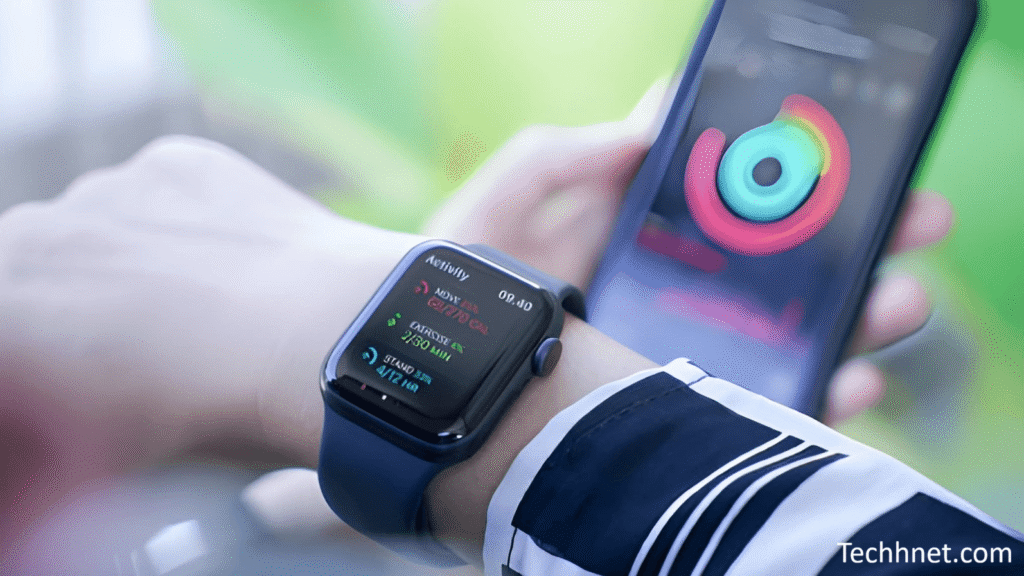
Although the Apple Watch doesn’t preview PDFs inside the Files app, it shares several Apple services with your iPhone. If your watch is connected to the same Apple ID, reviewing a few settings can help resolve syncing inconsistencies that occasionally affect iCloud services across your Apple devices.
Check Apple ID Consistency:
On your iPhone:
- Open Settings.
- Tap your Apple ID.
On your Apple Watch:
- Open the Watch app on your iPhone.
- Tap General.
- Confirm your watch is paired with the same Apple ID.
Using different Apple IDs across devices can lead to syncing confusion for shared services.
Verify iCloud Sync:
Open the Watch app on your iPhone.
Check that your Apple Watch is syncing normally and hasn’t displayed any recent pairing or backup errors.
If you recently restored either device, allow time for iCloud synchronization to complete before testing PDFs again.
Restart Both Devices:
Sometimes communication between Apple devices becomes temporarily interrupted.
Restart both:
- Your iPhone
- Your Apple Watch
To restart your Apple Watch:
- Press and hold the Side button.
- Move the power slider.
- Wait for the watch to turn off.
- Hold the Side button again until the Apple logo appears.
After both devices restart, allow a few minutes for synchronization to finish.
Update watchOS:
Keeping your Apple Watch updated helps maintain compatibility with the latest version of iOS.
To check:
- Open the Watch app.
- Tap General.
- Select Software Update.
Although watchOS updates don’t directly fix PDF preview problems, they improve the stability of Apple’s ecosystem and reduce synchronization issues.
16: Check VPN Settings
Virtual Private Networks can occasionally interfere with cloud storage services.
If you’re using a VPN:
- Open Settings.
- Tap VPN (or VPN & Device Management).
- Disconnect temporarily.
Now reopen the Files app.
If the PDF loads successfully, your VPN configuration may be blocking communication with your cloud storage provider.
17: Disable Low Power Mode
Low Power Mode reduces background activity, which can sometimes delay file downloads or cloud synchronization.
To disable it:
- Open Settings.
- Tap Battery.
- Turn Low Power Mode off.
Reconnect to Wi-Fi and allow the Files app to refresh.
18: Review Background App Refresh
Cloud storage applications rely on background activity to keep files synchronized.
To check:
- Open Settings.
- Tap General.
- Select Background App Refresh.
- Ensure it is enabled for apps like:
- Google Drive
- Dropbox
- OneDrive
Although the Files app itself doesn’t appear in this list, enabling refresh for cloud providers helps ensure PDFs remain accessible.
19: Reset Network Settings
If cloud documents consistently fail to download, resetting your network settings may help.
Go to:
Settings → General → Transfer or Reset iPhone → Reset → Reset Network Settings
This will remove:
- Saved Wi-Fi passwords
- VPN settings
- Cellular preferences
Reconnect to your Wi-Fi network afterward and test the PDF again.
20: Reset All Settings
If you’ve exhausted other options, resetting all settings can eliminate configuration issues without deleting your personal data.
Navigate to:
Settings → General → Transfer or Reset iPhone → Reset → Reset All Settings
This resets:
- Wi-Fi settings
- Keyboard dictionary
- Privacy settings
- Display preferences
- Network settings
Your photos, apps, files, and documents remain intact.
After the reset, open the Files app and check whether the iPhone Files App Fails to Preview PDFs on iOS issue has been resolved.
Additional Tips to Prevent PDF Preview Problems
Once you’ve fixed the issue, a few habits can help prevent it from returning:
- Keep iOS updated with the latest stable release.
- Maintain at least 5–10 GB of free storage.
- Use a reliable internet connection when downloading large PDF files.
- Avoid interrupting downloads before they finish.
- Regularly check that iCloud Drive is syncing correctly.
- Restart your iPhone occasionally to clear temporary system processes.
- Store important documents locally if you need offline access.
- Use trusted PDF sources to reduce the risk of corrupted files.
Frequently Asked Questions (FAQs) About iPhone Files App Fails to Preview PDFs on iOS.
1. Why does the Files app show a blank screen instead of opening my PDF?
A blank screen usually indicates that the PDF preview engine (Quick Look) is unable to render the document. This can happen because of a temporary software glitch, an incomplete file download, insufficient storage, or a corrupted PDF. If the iPhone Files App fails to preview PDFs on iOS, start by restarting the Files app and ensuring the document has fully downloaded before trying more advanced fixes.
2. Why can I open some PDFs but not others?
Not all PDF files are created the same. Some contain advanced features such as:
- Interactive forms
- Password protection
- Digital signatures
- Embedded fonts
- JavaScript
- High-resolution graphics
These features may not always work perfectly with Apple’s built-in preview engine. If only one or two PDFs refuse to open, the issue is likely with those specific documents rather than your iPhone.
3. Can low storage stop PDF previews from working?
Yes. When your iPhone is running low on available storage, iOS may struggle to create temporary files needed to render document previews.
Apple recommends keeping several gigabytes of free storage available to ensure smooth system performance. If the iPhone Files App Fails to Preview PDFs on iOS, freeing up storage is one of the simplest and most effective solutions.
4. Does updating iOS fix PDF preview issues?
In many cases, yes.
Apple regularly releases updates that include bug fixes for:
- Files app
- Quick Look
- iCloud Drive
- Document handling
- System stability
If the issue started after installing an older version of iOS, updating to the latest release may resolve it.
5. Why won’t PDFs stored in iCloud Drive open?
When documents are stored in iCloud Drive, they often need to be downloaded before they can be previewed.
Common reasons include:
- Weak internet connection
- Interrupted synchronization
- iCloud server delays
- Account authentication issues
Make sure iCloud Drive is enabled and connected to a stable Wi-Fi network.
6. Is my PDF file corrupted?
A quick way to check is by opening the same document on another device.
Try:
- Another iPhone
- iPad
- Mac
- Windows PC
- Adobe Acrobat Reader
If the file fails to open, it is most likely damaged and should be downloaded again from the source.
7. Can third-party cloud storage apps cause this issue?
Yes.
Google Drive, Dropbox, OneDrive, and other cloud services rely on their own synchronization systems. If those services experience syncing problems, the Files app may not be able to retrieve your document.
Signing out and back into the cloud storage app or reinstalling it often resolves these issues.
8. Should I delete the Files app?
No.
The Files app is a built-in part of iOS, and deleting or offloading it rarely solves preview issues. It’s better to troubleshoot the underlying cause, such as storage, iCloud synchronization, or software bugs.
9. Will resetting my iPhone delete my PDF files?
Not necessarily.
A Reset All Settings only restores system settings to their defaults and does not delete your personal files, photos, or apps.
However, a factory reset (Erase All Content and Settings) removes all data from your device. Always back up your iPhone before performing a factory reset.
10. When should I contact Apple Support?
If you’ve tried all the troubleshooting steps and the iPhone Files App Fails to Preview PDFs on iOS issue continues, consider contacting Apple Support if:
- Every PDF fails to open.
- The Files app crashes repeatedly.
- The issue started after hardware damage.
- iCloud Drive is not syncing correctly despite having a stable internet connection.
- Other built-in apps are also behaving unexpectedly.
These symptoms may indicate a deeper software or hardware issue that requires professional assistance.
Tips to Prevent PDF Preview Issues in the Future
While it’s impossible to avoid every software bug, following a few best practices can significantly reduce the chances of encountering document preview problems.
Keep iOS Updated
Software updates often include important fixes for the Files app, document rendering, and iCloud synchronization.
Enable automatic updates by going to:
Settings → General → Software Update → Automatic Updates
Keeping your device current ensures you benefit from the latest improvements and security patches.
Maintain Healthy Storage Levels
Avoid filling your iPhone’s storage.
A good rule of thumb is to keep at least 5–10 GB of free space available. This allows iOS to manage temporary files efficiently and helps prevent issues where the iPhone Files App Fails to Preview PDFs on iOS due to limited system resources.
Use Reliable Internet Connections
If your documents are stored in iCloud Drive or another cloud service, download them over a stable Wi-Fi connection whenever possible.
Interruptions during downloads can leave you with incomplete files that won’t preview correctly.
Regularly Back Up Important Documents
Important PDFs such as contracts, tax records, medical reports, or school assignments should be backed up in multiple locations.
Consider storing copies in:
- iCloud Drive
- An external drive
- A trusted cloud storage provider
- Your Mac or Windows PC
Backups ensure you can recover your documents if a file becomes corrupted.
Organize Your Files
Keeping the Files app organized can make troubleshooting much easier.
Create folders for:
- Work
- Personal
- School
- Receipts
- Financial documents
- Travel records
Well-organized storage also reduces the risk of accidentally deleting important files.
Download Files Before Traveling
If you know you’ll need access to important PDFs without an internet connection, download them to On My iPhone before leaving.
This ensures you can access the documents even if iCloud Drive or another cloud service is unavailable.
Restart Your iPhone Occasionally
Although modern iPhones are designed to stay powered on for long periods, restarting your device every week or two helps clear temporary memory and refresh background processes.
This simple habit can prevent many small software glitches from building up over time.
Common Mistakes to Avoid: iPhone Files App Fails to Preview PDFs on iOS
When troubleshooting PDF preview issues, it’s easy to make changes that don’t actually solve the problem—or worse, create new ones. Avoid these common mistakes:
- Deleting important PDF files before confirming they’re backed up.
- Interrupting an iCloud download before it finishes.
- Ignoring available iOS updates.
- Filling your iPhone’s storage
- Assuming every PDF problem is caused by the Files app.
- Using unstable public Wi-Fi for large downloads.
- Resetting your iPhone without creating a backup first.
Taking a methodical approach can save time and help preserve your important documents.
Final Thoughts on iPhone Files App Fails to Preview PDFs on iOS
The Files app is one of the most valuable productivity tools on the iPhone, allowing users to access, organize, and preview documents from local storage and cloud services in one convenient place. When everything works as expected, opening a PDF takes just a tap.
But when the iPhone Files App Fails to Preview PDFs on iOS, even a simple task can become frustrating—especially if you rely on your device for work, school, or personal records.
Fortunately, most PDF preview issues are caused by software glitches, incomplete downloads, storage limitations, or synchronization problems rather than permanent hardware failures.
By following the troubleshooting steps in this guide—from force-closing the Files app and restarting your iPhone to checking iCloud Drive settings, updating iOS, reviewing Apple Watch synchronization, and resetting system settings when necessary—you can resolve most problems without losing your files.
If the issue persists after trying every solution, testing the PDF on another device and contacting Apple Support are sensible next steps. In many cases, the problem turns out to be a damaged document or a temporary software bug that is resolved in a future iOS update.
By keeping your iPhone updated, maintaining adequate storage, using reliable cloud services, and backing up important documents regularly, you can minimize the chances of encountering this issue again and enjoy a smoother experience with the Files app.
Whether you’re opening a business contract, reading an eBook, reviewing lecture notes, or accessing personal records, these best practices will help ensure your PDFs remain accessible whenever you need them.